> ## Documentation Index
> Fetch the complete documentation index at: https://docs.edgeimpulse.com/llms.txt
> Use this file to discover all available pages before exploring further.
# Advantech ICAM-540
The [Advantech ICAM-540](https://www.advantech.com/en-eu/products/ce666c81-b9fc-4675-b7aa-0c16ce758636/icam-540/mod_090d1ba9-cea5-4fb1-98ab-9029aeb0a7e7) series is a highly integrated Industrial AI Camera equipped with SONY IMX334 industrial grade image sensor, based on an **NVIDIA Orin NX** SoM with support for C-mount lens. Featuring CAMNavi SDK, Google Chromium web browser utility and NVIDIA Deepstream SDK, ICAM-540 series accelerates the development and deployment of cloud-to-edge vision AI applications.
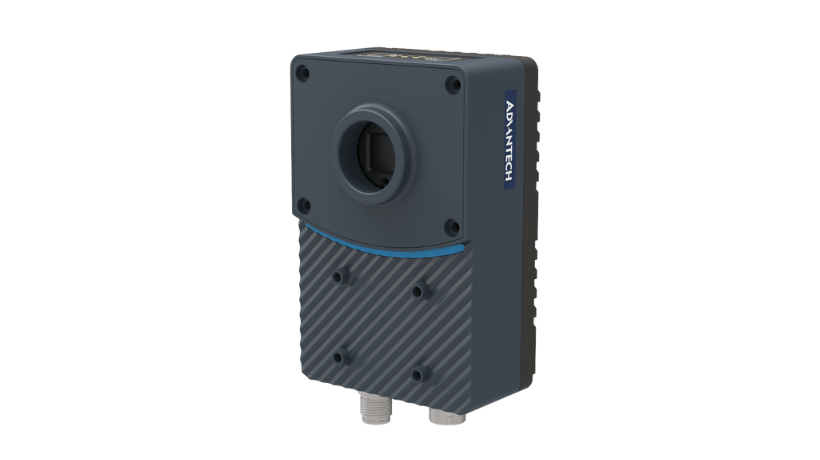 The CAMNavi SDK uses Python language by default and is better adapted to image acquisition and AI algorithm integration. Meanwhile the HTML 5 web based utility can be used to setup the cameras and network configuration to lower the installation effort.
The preloaded, optimized Jetpack board support package allows to seamlessly connect to AI cloud services. Advantech ICAM-540 series is an all-in-one, compact and rugged industrial AI camera and is ideal for a variety of Edge AI vision applications.
### Installing dependencies
Follow [Advantech's setup instructions](https://www.advantech.com/en-eu/support/details/manual?id=1-2J0501Y) to configure, connect, power up, and discover your ICAM-540. You may also need to purchase a camera lens that is appropriate for your application. You will need to connect power, keyboard, mouse, HDMI monitor, and the Ethernet connector. The initial/first boot-up of the ICAM-540 can take awhile so be patient... once it comes up and is ready, you will see a ubuntu desktop that you are logged into already (initial username/pw: icam-540/icam-540). You should change the password to something unique.
#### Advantech ICAM-540 OS Setup/Update
First, lets update the underlying OS:
```
icam-540@tegra-ubuntu:~$ sudo apt-get -y update
icam-540@tegra-ubuntu:~$ sudo apt-get -y dist-upgrade
icam-540@tegra-ubuntu:~$ sudo apt-get -y autoremove
icam-540@tegra-ubuntu:~$ sudo apt-get -y autoclean
```
#### Disable the CamNavi Service
By default on a fresh install, the ICAM-540 has a service that captures and controls the camera. For Edge Impulse, we need to stop and disable that service before we can continue:
```
icam-540@tegra-ubuntu:~$ sudo systemctl stop web.service
icam-540@tegra-ubuntu:~$ sudo systemctl disable web.service
icam-540@tegra-ubuntu:~$ sudo systemctl disable autoui.service
```
#### Camera sensor setup
At fresh start the camera sensor initializes with default image parameters (e.g., gain, exposure, etc.).
Most of the times the default parameters will not be suitable for the setting that you want to observe.
One solution is to set up a camera with [Basler Pylon Viewer](https://www.baslerweb.com/en/software/pylon/pylon-viewer/) visual tool, and save the camera sensor parameters for further use. **Pylon Viewer comes preinstalled on ICAM-540.**
First, launch the pylon Viewer tool from Basler:
```bash theme={"system"}
$ /opt/pylon/bin/pylonviewer
```
Turn on the camera in the GUI application by flipping the trigger and starting a continuous stream.
The CAMNavi SDK uses Python language by default and is better adapted to image acquisition and AI algorithm integration. Meanwhile the HTML 5 web based utility can be used to setup the cameras and network configuration to lower the installation effort.
The preloaded, optimized Jetpack board support package allows to seamlessly connect to AI cloud services. Advantech ICAM-540 series is an all-in-one, compact and rugged industrial AI camera and is ideal for a variety of Edge AI vision applications.
### Installing dependencies
Follow [Advantech's setup instructions](https://www.advantech.com/en-eu/support/details/manual?id=1-2J0501Y) to configure, connect, power up, and discover your ICAM-540. You may also need to purchase a camera lens that is appropriate for your application. You will need to connect power, keyboard, mouse, HDMI monitor, and the Ethernet connector. The initial/first boot-up of the ICAM-540 can take awhile so be patient... once it comes up and is ready, you will see a ubuntu desktop that you are logged into already (initial username/pw: icam-540/icam-540). You should change the password to something unique.
#### Advantech ICAM-540 OS Setup/Update
First, lets update the underlying OS:
```
icam-540@tegra-ubuntu:~$ sudo apt-get -y update
icam-540@tegra-ubuntu:~$ sudo apt-get -y dist-upgrade
icam-540@tegra-ubuntu:~$ sudo apt-get -y autoremove
icam-540@tegra-ubuntu:~$ sudo apt-get -y autoclean
```
#### Disable the CamNavi Service
By default on a fresh install, the ICAM-540 has a service that captures and controls the camera. For Edge Impulse, we need to stop and disable that service before we can continue:
```
icam-540@tegra-ubuntu:~$ sudo systemctl stop web.service
icam-540@tegra-ubuntu:~$ sudo systemctl disable web.service
icam-540@tegra-ubuntu:~$ sudo systemctl disable autoui.service
```
#### Camera sensor setup
At fresh start the camera sensor initializes with default image parameters (e.g., gain, exposure, etc.).
Most of the times the default parameters will not be suitable for the setting that you want to observe.
One solution is to set up a camera with [Basler Pylon Viewer](https://www.baslerweb.com/en/software/pylon/pylon-viewer/) visual tool, and save the camera sensor parameters for further use. **Pylon Viewer comes preinstalled on ICAM-540.**
First, launch the pylon Viewer tool from Basler:
```bash theme={"system"}
$ /opt/pylon/bin/pylonviewer
```
Turn on the camera in the GUI application by flipping the trigger and starting a continuous stream.
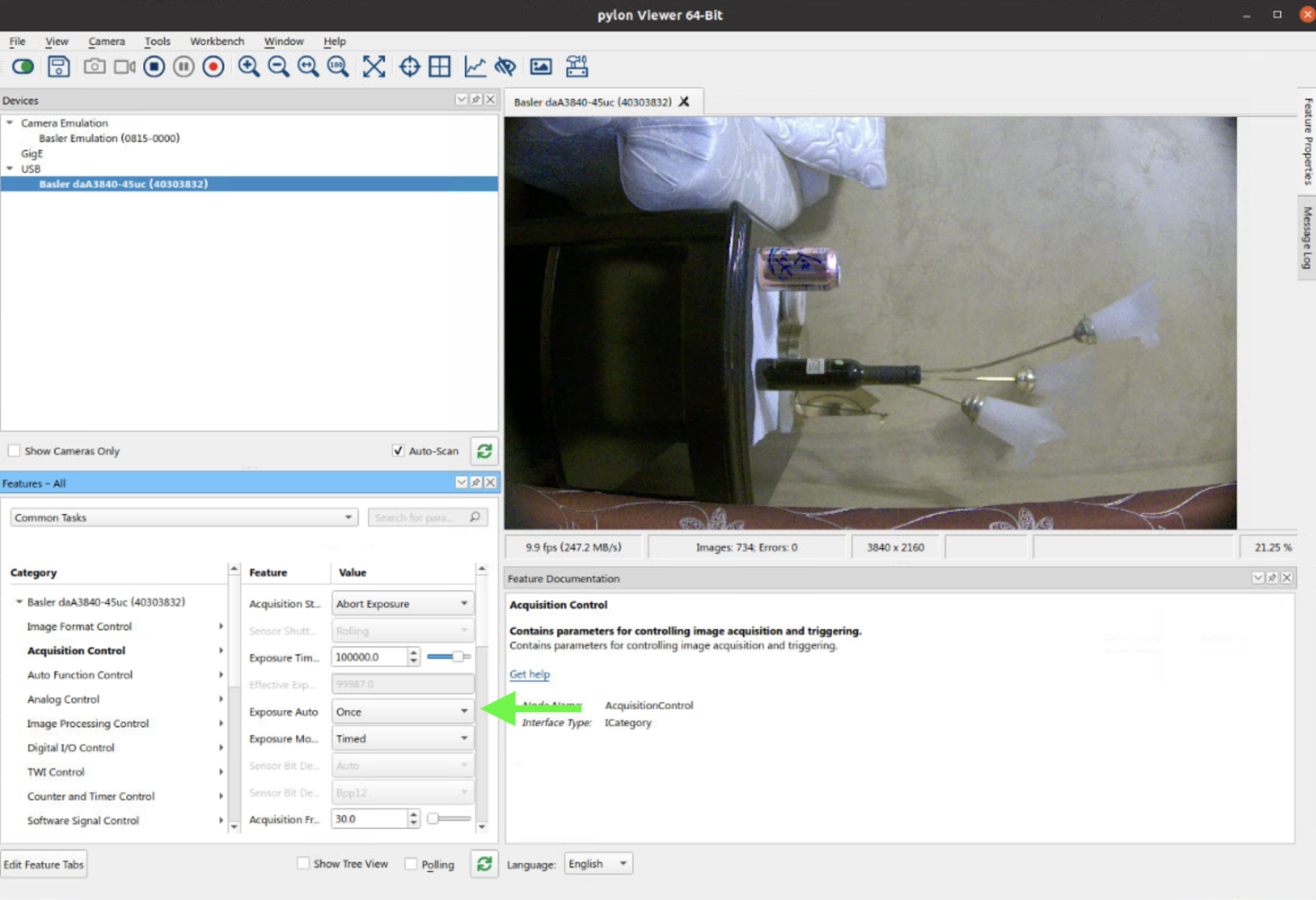
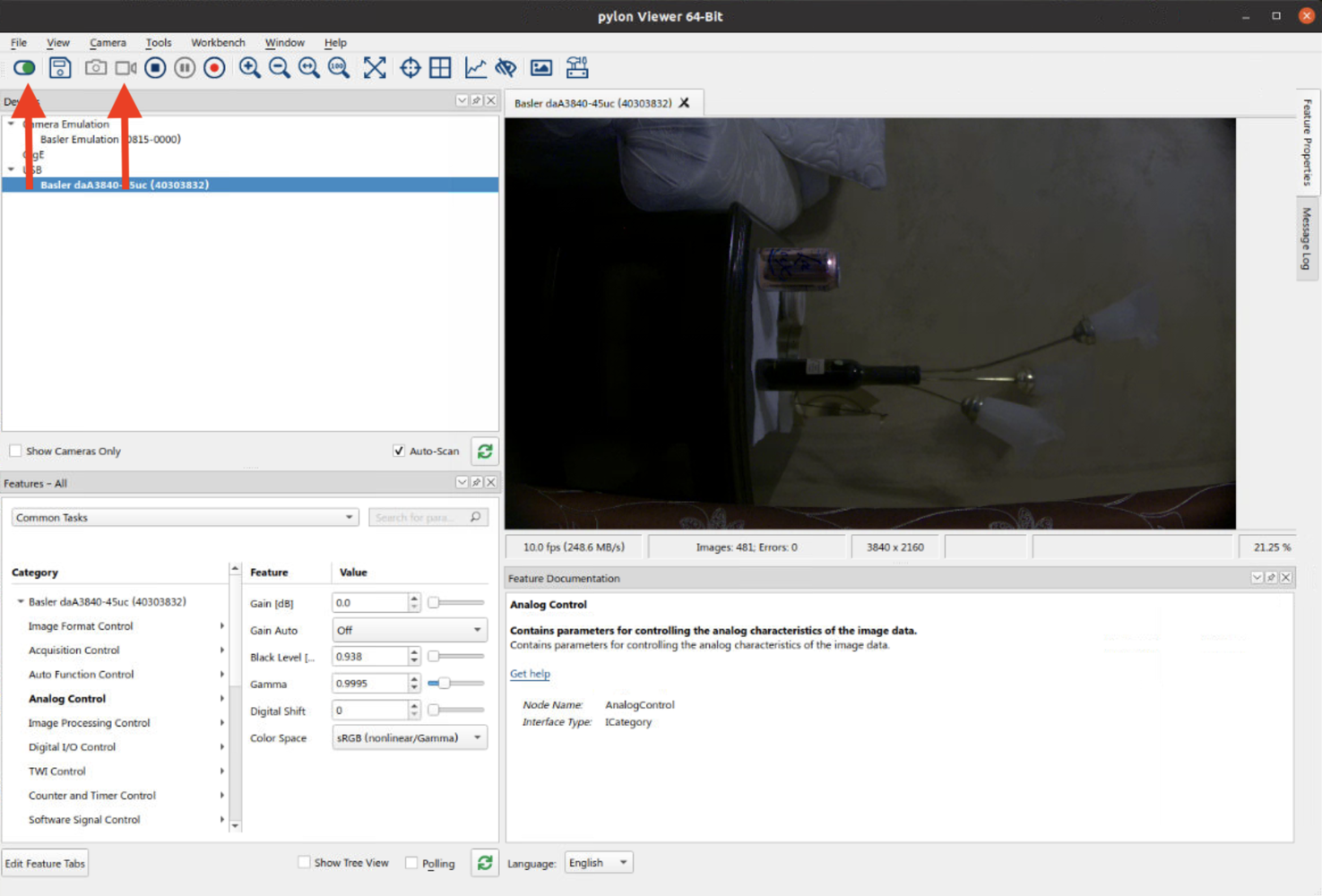 Now, adjust the camera sensor configurations to ensure the images coming from the sensor are of desired quality and lighting.
If you don't know where to start, the initial suggestions are to set **Exposure Auto** to **Once** and **Gain Auto** to **Once**. This way the sensor will adjust to the current frame conditions. Setting these to **Continuous** will make the sensor adjust these parameters dynamically as the frame changes.
Now, adjust the camera sensor configurations to ensure the images coming from the sensor are of desired quality and lighting.
If you don't know where to start, the initial suggestions are to set **Exposure Auto** to **Once** and **Gain Auto** to **Once**. This way the sensor will adjust to the current frame conditions. Setting these to **Continuous** will make the sensor adjust these parameters dynamically as the frame changes.
 After you are satisfied with the configuration it needs to be saved in the filesystem in `.pfs` format for further reuse.
To do that:
* Pause the stream by clicking on the "stop" icon
* Open "Camera" menu on the top menu and click "Save Features"
* Save the file in a filesystem path. It is recommended to create a directory for these configurations, e.g., `/home/icam-540/basler-configs`
Note: The following steps assume you have saved the file as "config-1.pfs" and have stored that file in the following directory: \$HOME/basler-configs:
```
icam-540@tegra-ubuntu:~$ mkdir -p $HOME/basler-configs
icam-540@tegra-ubuntu:~$ mv $HOME/*.pfs $HOME/basler-configs/config-1.pfs
```
Refer to [Basler pylon Viewer documentation](https://docs.baslerweb.com/overview-of-the-pylon-viewer) for more settings and usage tips
#### Running the setup script
To set this device up in Edge Impulse, run the following command (from any folder). When prompted, enter the password you created for the user on your ICAM-540 during the "Installing dependencies" section. The entire script takes a few minutes to run.
```bash theme={"system"}
wget -q -O - https://cdn.edgeimpulse.com/firmware/linux/orin.sh | bash
```
### Connecting to Edge Impulse
With camera settings configured and assuming they are saved in e.g., `/home/icam-540/basler-configs/config-1.pfs`, run the following command:
```
edge-impulse-linux --gst-launch-args "pylonsrc pfs-location=/home/icam-540/basler-configs/config-1.pfs ! video/x-raw,width=3840,height=2160,format=BGR ! videoconvert ! jpegenc"
```
This will start a wizard which will ask you to log in, and choose an Edge Impulse project. In the Data Acquisition tab of Edge Impulse Studio you may take images directly from the camera with those settings for use in developing your machine learning dataset.
### Next steps: building a machine learning model
With everything set up you can now build your first machine learning model with these tutorials:
* [Image classification](/tutorials/end-to-end/image-classification)
* [Object detection](/tutorials/end-to-end/object-detection-bounding-boxes)
* [Object detection with centroids (FOMO)](/tutorials/end-to-end/object-detection-centroids)
Looking to connect different sensors? Our [Linux SDK](/tools/libraries/sdks/inference/linux) lets you easily send data from any sensor and any programming language (with examples in Node.js, Python, Go and C++) into Edge Impulse.
### Deploying back to device
To run your impulse locally stop any previous Edge Impulse commands (CTRL+C) and run the following with the camera configurations you prefer (see above for info on camera configuration).
```bash theme={"system"}
edge-impulse-linux-runner --gst-launch-args "pylonsrc pfs-location=/home/icam-540/basler-configs/config-1.pfs ! video/x-raw,width=3840,height=2160,format=BGR ! videoconvert ! jpegenc"
```
This will automatically compile your model with **GPU and hardware** acceleration, download the model to your device, and then start the inference, capturing the input with previously configured camera parameters. Our [Linux SDK](/tools/libraries/sdks/inference/linux) has examples on how to integrate the model with your favourite programming language.
Alternatively, you may download your model from the Deployment section of Edge Impulse Studio. Be sure to choose the Advantech ICAM-540 option to get the best acceleration possible.
After you are satisfied with the configuration it needs to be saved in the filesystem in `.pfs` format for further reuse.
To do that:
* Pause the stream by clicking on the "stop" icon
* Open "Camera" menu on the top menu and click "Save Features"
* Save the file in a filesystem path. It is recommended to create a directory for these configurations, e.g., `/home/icam-540/basler-configs`
Note: The following steps assume you have saved the file as "config-1.pfs" and have stored that file in the following directory: \$HOME/basler-configs:
```
icam-540@tegra-ubuntu:~$ mkdir -p $HOME/basler-configs
icam-540@tegra-ubuntu:~$ mv $HOME/*.pfs $HOME/basler-configs/config-1.pfs
```
Refer to [Basler pylon Viewer documentation](https://docs.baslerweb.com/overview-of-the-pylon-viewer) for more settings and usage tips
#### Running the setup script
To set this device up in Edge Impulse, run the following command (from any folder). When prompted, enter the password you created for the user on your ICAM-540 during the "Installing dependencies" section. The entire script takes a few minutes to run.
```bash theme={"system"}
wget -q -O - https://cdn.edgeimpulse.com/firmware/linux/orin.sh | bash
```
### Connecting to Edge Impulse
With camera settings configured and assuming they are saved in e.g., `/home/icam-540/basler-configs/config-1.pfs`, run the following command:
```
edge-impulse-linux --gst-launch-args "pylonsrc pfs-location=/home/icam-540/basler-configs/config-1.pfs ! video/x-raw,width=3840,height=2160,format=BGR ! videoconvert ! jpegenc"
```
This will start a wizard which will ask you to log in, and choose an Edge Impulse project. In the Data Acquisition tab of Edge Impulse Studio you may take images directly from the camera with those settings for use in developing your machine learning dataset.
### Next steps: building a machine learning model
With everything set up you can now build your first machine learning model with these tutorials:
* [Image classification](/tutorials/end-to-end/image-classification)
* [Object detection](/tutorials/end-to-end/object-detection-bounding-boxes)
* [Object detection with centroids (FOMO)](/tutorials/end-to-end/object-detection-centroids)
Looking to connect different sensors? Our [Linux SDK](/tools/libraries/sdks/inference/linux) lets you easily send data from any sensor and any programming language (with examples in Node.js, Python, Go and C++) into Edge Impulse.
### Deploying back to device
To run your impulse locally stop any previous Edge Impulse commands (CTRL+C) and run the following with the camera configurations you prefer (see above for info on camera configuration).
```bash theme={"system"}
edge-impulse-linux-runner --gst-launch-args "pylonsrc pfs-location=/home/icam-540/basler-configs/config-1.pfs ! video/x-raw,width=3840,height=2160,format=BGR ! videoconvert ! jpegenc"
```
This will automatically compile your model with **GPU and hardware** acceleration, download the model to your device, and then start the inference, capturing the input with previously configured camera parameters. Our [Linux SDK](/tools/libraries/sdks/inference/linux) has examples on how to integrate the model with your favourite programming language.
Alternatively, you may download your model from the Deployment section of Edge Impulse Studio. Be sure to choose the Advantech ICAM-540 option to get the best acceleration possible.
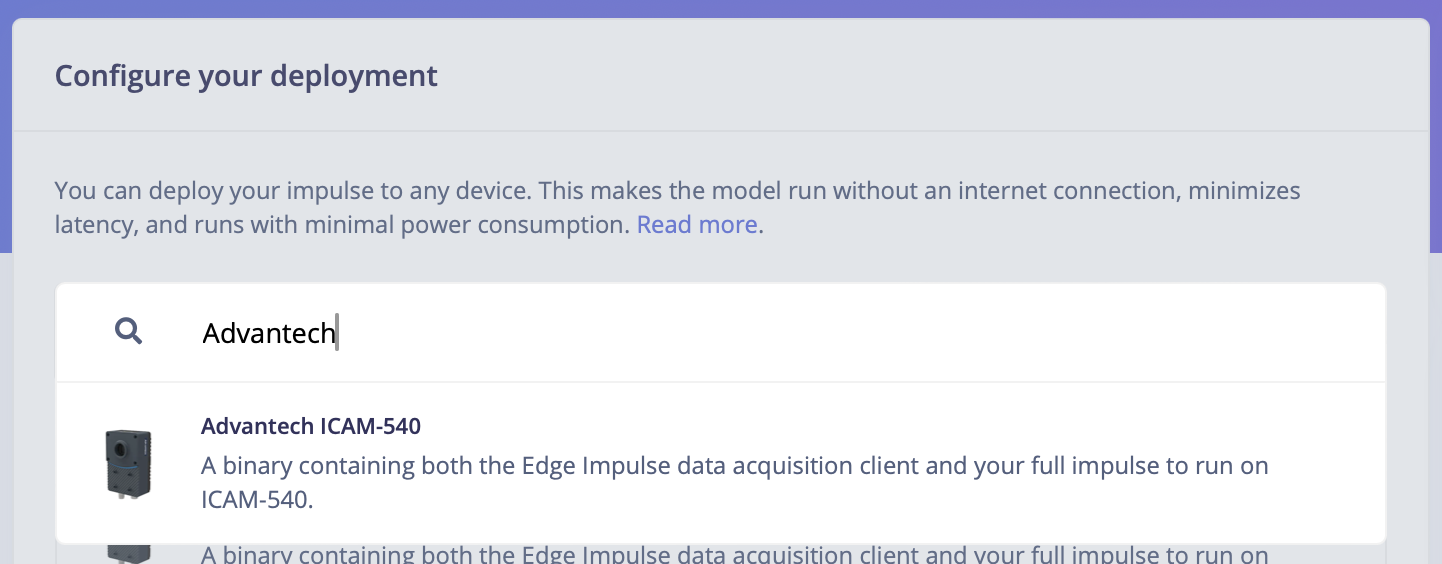 Copy the downloaded `.eim` file to the device's file system and run this command on the device
```bash theme={"system"}
edge-impulse-linux-runner --model-file path/to/file.eim --gst-launch-args
```
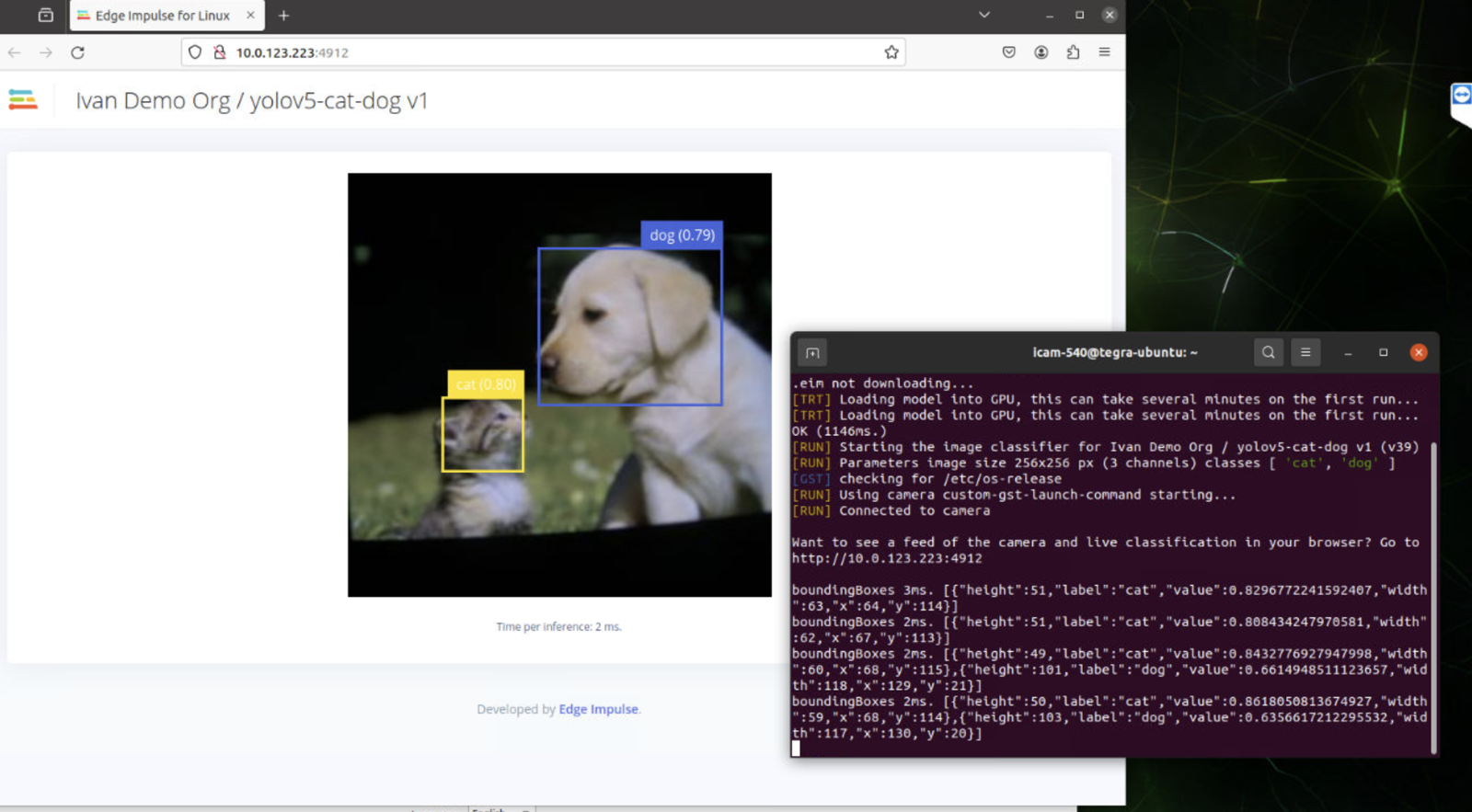
#### View inference in web browser
If you have an image model then you can get a peek of what your device sees by being on the same network as your device, and finding the 'Want to see a feed of the camera and live classification in your browser' message in the console. Open the URL in a browser and both the camera feed and the classification are shown:
Copy the downloaded `.eim` file to the device's file system and run this command on the device
```bash theme={"system"}
edge-impulse-linux-runner --model-file path/to/file.eim --gst-launch-args
```
#### View inference in web browser
If you have an image model then you can get a peek of what your device sees by being on the same network as your device, and finding the 'Want to see a feed of the camera and live classification in your browser' message in the console. Open the URL in a browser and both the camera feed and the classification are shown:
 ### Troubleshooting
#### edge-impulse-linux reports "OOM killed!"
Using make -j without specifying job limits can overtax system resources, causing "OOM killed" errors, especially on resource-constrained devices this has been observed on many of our supported Linux based SBCs.
Avoid using make -j without limits. If you experience OOM errors, limit concurrent jobs. A safe practice is:
```
make -j`nproc`
```
This sets the number of jobs to your machine's available cores, balancing performance and system load.
#### edge-impulse-linux reports "\[Error: Input buffer contains unsupported image format]"
This is probably caused by a missing dependency on libjpeg. If you run:
```bash theme={"system"}
vips --vips-config
```
The end of the output should show support for file import/export with libjpeg, like so:
```bash theme={"system"}
file import/export with libjpeg: yes (pkg-config)
image pyramid export: no
use libexif to load/save JPEG metadata: no
alex@jetson1:~$
```
If you don't see jpeg support as "yes", rerun the setup script and take note of any errors.
#### edge-impulse-linux reports "Failed to start device monitor!"
If you encounter this error, ensure that your entire home directory is owned by you (especially the .config folder):
```bash theme={"system"}
sudo chown -R $(whoami) $HOME
```
#### Long warm-up time and under-performance
By default, the Jetson Orin enabled devices use a number of aggressive power saving features to disable and slow down hardware that is detected to be not in use. Experience indicates that sometimes the GPU cannot power up fast enough, nor stay on long enough, to enjoy best performance. You can adjust your power settings in the menu bar of the Ubuntu desktop.
Additionally, due to NVIDIA GPU internal architecture, running small models on it is less efficient than running larger models. E.g. the continuous gesture recognition model runs faster on NVIDIA CPU than on GPU with TensorRT acceleration.
According to our benchmarks, running vision models and larger keyword spotting models on GPU will result in faster inference, while smaller keyword spotting models and gesture recognition models (that also includes simple fully connected NN, that can be used for analyzing other time-series data) will perform better on CPU.
### Troubleshooting
#### edge-impulse-linux reports "OOM killed!"
Using make -j without specifying job limits can overtax system resources, causing "OOM killed" errors, especially on resource-constrained devices this has been observed on many of our supported Linux based SBCs.
Avoid using make -j without limits. If you experience OOM errors, limit concurrent jobs. A safe practice is:
```
make -j`nproc`
```
This sets the number of jobs to your machine's available cores, balancing performance and system load.
#### edge-impulse-linux reports "\[Error: Input buffer contains unsupported image format]"
This is probably caused by a missing dependency on libjpeg. If you run:
```bash theme={"system"}
vips --vips-config
```
The end of the output should show support for file import/export with libjpeg, like so:
```bash theme={"system"}
file import/export with libjpeg: yes (pkg-config)
image pyramid export: no
use libexif to load/save JPEG metadata: no
alex@jetson1:~$
```
If you don't see jpeg support as "yes", rerun the setup script and take note of any errors.
#### edge-impulse-linux reports "Failed to start device monitor!"
If you encounter this error, ensure that your entire home directory is owned by you (especially the .config folder):
```bash theme={"system"}
sudo chown -R $(whoami) $HOME
```
#### Long warm-up time and under-performance
By default, the Jetson Orin enabled devices use a number of aggressive power saving features to disable and slow down hardware that is detected to be not in use. Experience indicates that sometimes the GPU cannot power up fast enough, nor stay on long enough, to enjoy best performance. You can adjust your power settings in the menu bar of the Ubuntu desktop.
Additionally, due to NVIDIA GPU internal architecture, running small models on it is less efficient than running larger models. E.g. the continuous gesture recognition model runs faster on NVIDIA CPU than on GPU with TensorRT acceleration.
According to our benchmarks, running vision models and larger keyword spotting models on GPU will result in faster inference, while smaller keyword spotting models and gesture recognition models (that also includes simple fully connected NN, that can be used for analyzing other time-series data) will perform better on CPU.