> ## Documentation Index
> Fetch the complete documentation index at: https://docs.edgeimpulse.com/llms.txt
> Use this file to discover all available pages before exploring further.
# ST B-L475E-IOT01A
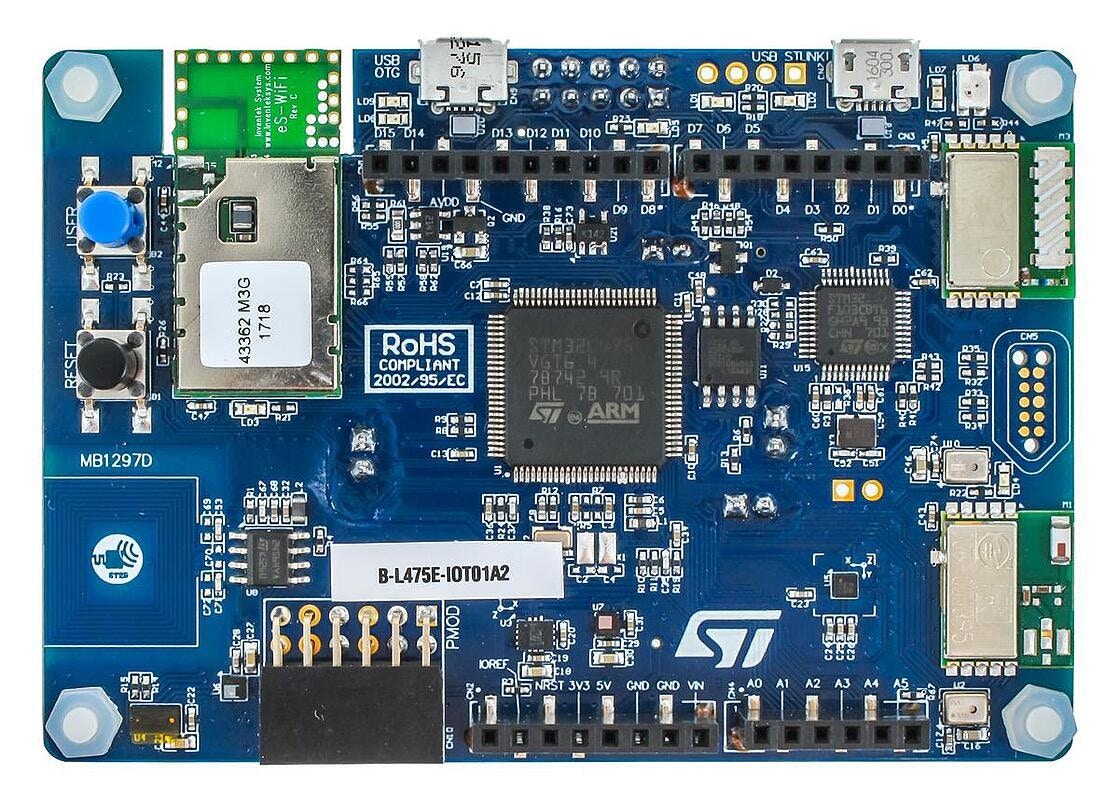
The ST IoT Discovery Kit (also known as the B-L475E-IOT01A) is a development board with a Cortex-M4 microcontroller, MEMS motion sensors, a microphone and WiFi - and it's fully supported by Edge Impulse. You'll be able to sample raw data, build models, and deploy trained machine learning models directly from the studio.
The Edge Impulse firmware for this development board is open source and hosted on GitHub: [edgeimpulse/firmware-st-b-l475e-iot01a](https://github.com/edgeimpulse/firmware-st-b-l475e-iot01a).
**Two variants of this board**
There are two variants of this board, the B-L475E-IOT01A**1** (US region) and the B-L475E-IOT01A**2** (EU region) - the only difference is the sub-GHz radio. Both are usable in Edge Impulse.
 ### Installing dependencies
To set this device up in Edge Impulse, you will need to install the following software:
1. [Edge Impulse CLI](/tools/clis/edge-impulse-cli/installation)).
2. On Windows:
* [ST Link](https://cdn.edgeimpulse.com/drivers/st-link.zip) - drivers for the development board. Run `dpinst_amd64` on 64-bits Windows, or `dpinst_x86` on 32-bits Windows.
3. On Linux:
* GNU Screen: install for example via `sudo apt install screen`.
**Problems installing the CLI?"**
See the [Installation and troubleshooting](/tools/clis/edge-impulse-cli/installation) guide.
### Connecting to Edge Impulse
With all the software in place it's time to connect the development board to Edge Impulse.
#### 1. Connect the development board to your computer
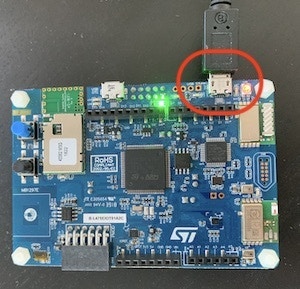
Use a micro-USB cable to connect the development board to your computer. There are two USB ports on the development board, use the one the furthest from the buttons.
### Installing dependencies
To set this device up in Edge Impulse, you will need to install the following software:
1. [Edge Impulse CLI](/tools/clis/edge-impulse-cli/installation)).
2. On Windows:
* [ST Link](https://cdn.edgeimpulse.com/drivers/st-link.zip) - drivers for the development board. Run `dpinst_amd64` on 64-bits Windows, or `dpinst_x86` on 32-bits Windows.
3. On Linux:
* GNU Screen: install for example via `sudo apt install screen`.
**Problems installing the CLI?"**
See the [Installation and troubleshooting](/tools/clis/edge-impulse-cli/installation) guide.
### Connecting to Edge Impulse
With all the software in place it's time to connect the development board to Edge Impulse.
#### 1. Connect the development board to your computer
Use a micro-USB cable to connect the development board to your computer. There are two USB ports on the development board, use the one the furthest from the buttons.
 #### 2. Update the firmware
The development board does not come with the right firmware yet. To update the firmware:
1. The development board is mounted as a USB mass-storage device (like a USB flash drive), with the name `DIS_L4IOT`. Make sure you can see this drive.
2. [Download the latest Edge Impulse firmware](https://cdn.edgeimpulse.com/firmware/DISCO-L475VG-IOT01A.bin).
3. Drag the `DISCO-L475VG-IOT01A.bin` file to the `DIS_L4IOT` drive.
4. Wait until the LED stops flashing red and green.
#### 3. Setting keys and WiFi credentials
From a command prompt or terminal, run:
```
edge-impulse-daemon
```
This will start a wizard which will ask you to log in, choose an Edge Impulse project, and set up your WiFi network. If you want to switch projects run the command with `--clean`.
Alternatively, recent versions of Google Chrome and Microsoft Edge can collect data directly from your development board, without the need for the Edge Impulse CLI. See [this blog post](https://edgeimpulse.com/blog/collect-sensor-data-straight-from-your-web-browser) for more information.
#### 4. Verifying that the device is connected
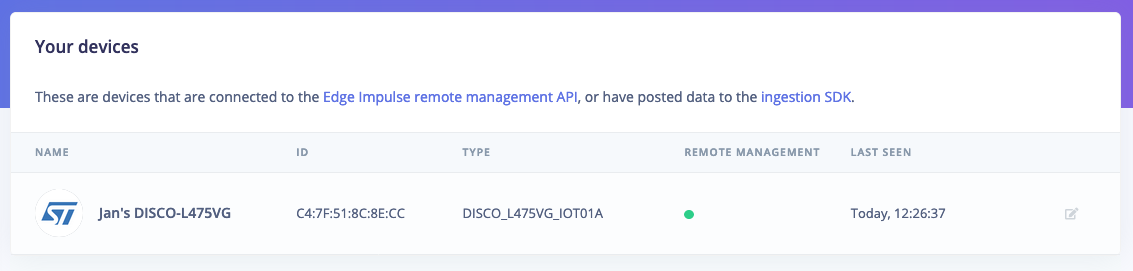
That's all! Your device is now connected to Edge Impulse. To verify this, go to [your Edge Impulse project](https://studio.edgeimpulse.com/studio/profile/projects), and click **Devices**. The device will be listed here.
#### 2. Update the firmware
The development board does not come with the right firmware yet. To update the firmware:
1. The development board is mounted as a USB mass-storage device (like a USB flash drive), with the name `DIS_L4IOT`. Make sure you can see this drive.
2. [Download the latest Edge Impulse firmware](https://cdn.edgeimpulse.com/firmware/DISCO-L475VG-IOT01A.bin).
3. Drag the `DISCO-L475VG-IOT01A.bin` file to the `DIS_L4IOT` drive.
4. Wait until the LED stops flashing red and green.
#### 3. Setting keys and WiFi credentials
From a command prompt or terminal, run:
```
edge-impulse-daemon
```
This will start a wizard which will ask you to log in, choose an Edge Impulse project, and set up your WiFi network. If you want to switch projects run the command with `--clean`.
Alternatively, recent versions of Google Chrome and Microsoft Edge can collect data directly from your development board, without the need for the Edge Impulse CLI. See [this blog post](https://edgeimpulse.com/blog/collect-sensor-data-straight-from-your-web-browser) for more information.
#### 4. Verifying that the device is connected
That's all! Your device is now connected to Edge Impulse. To verify this, go to [your Edge Impulse project](https://studio.edgeimpulse.com/studio/profile/projects), and click **Devices**. The device will be listed here.
 ### Next steps: building a machine learning model
With everything set up you can now build your first machine learning model with these tutorials:
* [Building a continuous motion recognition system](/tutorials/end-to-end/motion-recognition).
* [Recognizing sounds from audio](/tutorials/end-to-end/sound-recognition).
* [Keyword spotting](/tutorials/end-to-end/keyword-spotting).
Looking to connect different sensors? The [Data forwarder](/tools/clis/edge-impulse-cli/data-forwarder) lets you easily send data from any sensor into Edge Impulse.
### Troubleshooting
#### Unable to set up WiFi with ST B-L475E-IOT01A development board
If you experience the following error when attempting to connect to a WiFi network:
```
? WiFi is not connected, do you want to set up a WiFi network now? Yes
Scanning WiFi networks...Error while setting up device Timeout
```
You have hit a [known issue](https://github.com/ARMmbed/wifi-ism43362/issues/53) with the firmware for this development board's WiFi module that results in a timeout during network scanning if there are more than 20 WiFi access points detected. If you are experiencing this issue, you can work around it by attempting to reduce the number of access points within range of the device, or by skipping WiFi configuration.
#### My device is not responding, and nothing happens when I attempt to update the firmware
If the LED does not flash red and green when you copy the `.bin` file to the device and instead is a solid red color, and you are unable to connect the device with Edge Impulse, there may be an issue with your device's native firmware.
To restore functionality, use the following tool from ST to update your board to the latest version:
* [ST-LINK, ST-LINK/V2, ST-LINK/V2-1, STLINK-V3 boards firmware upgrade](https://www.st.com/en/development-tools/stsw-link007.html)
#### I don't see the DIS\_L4IOT drive, or cannot connect over serial to the board (Linux)
You might need to set up udev rules on Linux before being able to talk to the device. Create a file named `/etc/udev/rules.d/50-stlink.rules` and add the following content:
```
SUBSYSTEMS=="usb", ATTRS{idVendor}=="0483", ATTRS{idProduct}=="3748", MODE:="0666"
SUBSYSTEMS=="usb", ATTRS{idVendor}=="0483", ATTRS{idProduct}=="374b", MODE:="0666"
```
Then unplug the development board and plug it back in.
### Next steps: building a machine learning model
With everything set up you can now build your first machine learning model with these tutorials:
* [Building a continuous motion recognition system](/tutorials/end-to-end/motion-recognition).
* [Recognizing sounds from audio](/tutorials/end-to-end/sound-recognition).
* [Keyword spotting](/tutorials/end-to-end/keyword-spotting).
Looking to connect different sensors? The [Data forwarder](/tools/clis/edge-impulse-cli/data-forwarder) lets you easily send data from any sensor into Edge Impulse.
### Troubleshooting
#### Unable to set up WiFi with ST B-L475E-IOT01A development board
If you experience the following error when attempting to connect to a WiFi network:
```
? WiFi is not connected, do you want to set up a WiFi network now? Yes
Scanning WiFi networks...Error while setting up device Timeout
```
You have hit a [known issue](https://github.com/ARMmbed/wifi-ism43362/issues/53) with the firmware for this development board's WiFi module that results in a timeout during network scanning if there are more than 20 WiFi access points detected. If you are experiencing this issue, you can work around it by attempting to reduce the number of access points within range of the device, or by skipping WiFi configuration.
#### My device is not responding, and nothing happens when I attempt to update the firmware
If the LED does not flash red and green when you copy the `.bin` file to the device and instead is a solid red color, and you are unable to connect the device with Edge Impulse, there may be an issue with your device's native firmware.
To restore functionality, use the following tool from ST to update your board to the latest version:
* [ST-LINK, ST-LINK/V2, ST-LINK/V2-1, STLINK-V3 boards firmware upgrade](https://www.st.com/en/development-tools/stsw-link007.html)
#### I don't see the DIS\_L4IOT drive, or cannot connect over serial to the board (Linux)
You might need to set up udev rules on Linux before being able to talk to the device. Create a file named `/etc/udev/rules.d/50-stlink.rules` and add the following content:
```
SUBSYSTEMS=="usb", ATTRS{idVendor}=="0483", ATTRS{idProduct}=="3748", MODE:="0666"
SUBSYSTEMS=="usb", ATTRS{idVendor}=="0483", ATTRS{idProduct}=="374b", MODE:="0666"
```
Then unplug the development board and plug it back in.