> ## Documentation Index
> Fetch the complete documentation index at: https://docs.edgeimpulse.com/llms.txt
> Use this file to discover all available pages before exploring further.
# Seeed Grove Vision AI Module V2 (WiseEye2)
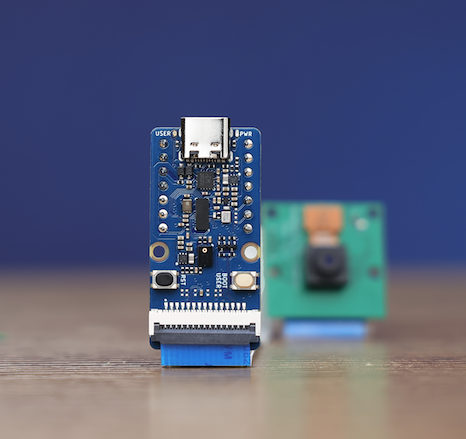
The Grove Vision AI Module V2 (Himax WiseEye2) is a highly efficient MCU-based smart vision module driven by the Himax WiseEye2 HX6538 processor, featuring a **dual-core Arm Cortex-M55 and integrated Arm Ethos-U55** neural network component. It integrates **Arm Helium technology** which is finely optimized for vector data processing, enables a significant uplift in DSP and ML capabilities without compromising on power consumption, which is ideal for **battery-powered applications**.
* **Capabilities:** Utilizes [WiseEye2 HX6538 processor](https://www.himax.com.tw/products/intelligent-sensing/always-on-smart-sensing/wiseeye2-ai-processor/) with a dual-core Arm Cortex-M55 and integrated Arm Ethos-U55 neural network unit.
* **Versatile AI Model Support:** Easily deploy off-the-shelf or your custom AI models from [SenseCraft AI](https://sensecraft.seeed.cc/ai/model), including Mobilenet V1, V2, Efficientnet-lite, Yolo v5 & v8. TensorFlow and PyTorch frameworks are supported.
* **Rich Peripheral Devices:** Includes PDM microphone, SD card slot, Type-C, Grove interface, and other peripherals.
* **High Compatibility:** Compatible with XIAO series, Arduino, Raspberry Pi, ESP dev board, easy for further development
* **Fully Open Source:** All codes, design files, and schematics available for modification and use.
 *Quick links access:*
* Firmware source code: [GitHub repository](https://github.com/edgeimpulse/firmware-seeed-grove-vision-ai-module-v2)
* Edge Impulse pre-compiled firmware: [seeed-grove-vision-ai-module-v2.zip](https://cdn.edgeimpulse.com/firmware/seeed-grove-vision-ai-module-v2.zip)
### Installing dependencies
To set this board up in Edge Impulse, you will need to install the following software:
1. [Edge Impulse CLI](/tools/clis/edge-impulse-cli/installation)
**Note:** Make sure that you have the CLI tools version **at least 1.27.1**. You can check it with:
```bash theme={"system"}
edge-impulse-daemon --version
```
2. On Linux, please install screen:
```bash theme={"system"}
sudo apt install screen
```
**Problems installing the Edge Impulse CLI?**
See the [Installation and troubleshooting](/tools/clis/edge-impulse-cli/installation) guide.
### Connecting to Edge Impulse
With all the software in place it's time to connect the board to Edge Impulse.
#### 1. Update Edge Impulse firmware
The board does not come with the right Edge Impulse firmware yet. To update the firmware:
1. Download the latest [Edge Impulse firmware](https://cdn.edgeimpulse.com/firmware/seeed-grove-vision-ai-module-v2.zip) and extract it
2. Connect the board to the PC/Mac/Linux via USB Type-C cable
3. Within the extracted firmware zip file, there are install scripts to flash your device:
* For MacOS:
```bash theme={"system"}
./flash_mac.command
```
* For Windows:
```
"C:.\flash_windows.bat"
```
* For Linux:
```bash theme={"system"}
./flash_linux.sh
```
4. Additionally, you need to flash the model file to your board. You can find the model in the `model_vela.tflite` file.
1. Clone the firmware source code from [our repository](https://github.com/edgeimpulse/firmware-seeed-grove-vision-ai-module-v2)
2. Open terminal in the root of the repository
3. Install required Python packages
```bash theme={"system"}
pip install -r xmodem/requirements.txt
```
4. Flash the model
```bash theme={"system"}
python3 xmodem/xmodem_send.py --port= --baudrate=921600 --protocol=xmodem --model=" 0x200000 0x00000"
```
In each case, you will select the serial port for your device and the flashing script will perform the firmware update.
**Note:** If the flashing script waits for you to press the "reset" (RST) button but never moves on from that point, its likely that you have an outdated ***himax-flash-tool*** and need to update your host's install per previous instructions above.
#### 2. Setting keys
From a command prompt or terminal, run:
```
edge-impulse-daemon
```
This will start a wizard which will ask you to log in, and choose an Edge Impulse project. If you want to switch projects run the command with `--clean`.
Alternatively, recent versions of Google Chrome and Microsoft Edge can collect data directly from your board, without the need for the Edge Impulse CLI. See [this blog post](https://edgeimpulse.com/blog/collect-sensor-data-straight-from-your-web-browser) for more information.
#### 3. Verifying that the device is connected
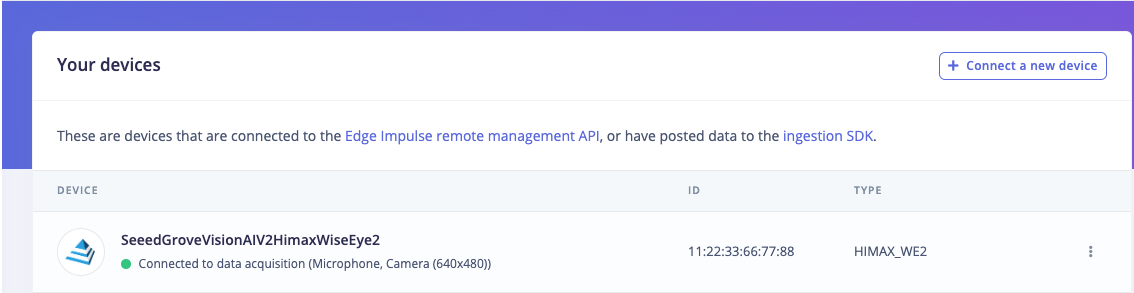
That's all! Your device is now connected to Edge Impulse. To verify this, go to [your Edge Impulse project](https://studio.edgeimpulse.com/studio/profile/projects), and click **Devices**. The device will be listed here.
*Quick links access:*
* Firmware source code: [GitHub repository](https://github.com/edgeimpulse/firmware-seeed-grove-vision-ai-module-v2)
* Edge Impulse pre-compiled firmware: [seeed-grove-vision-ai-module-v2.zip](https://cdn.edgeimpulse.com/firmware/seeed-grove-vision-ai-module-v2.zip)
### Installing dependencies
To set this board up in Edge Impulse, you will need to install the following software:
1. [Edge Impulse CLI](/tools/clis/edge-impulse-cli/installation)
**Note:** Make sure that you have the CLI tools version **at least 1.27.1**. You can check it with:
```bash theme={"system"}
edge-impulse-daemon --version
```
2. On Linux, please install screen:
```bash theme={"system"}
sudo apt install screen
```
**Problems installing the Edge Impulse CLI?**
See the [Installation and troubleshooting](/tools/clis/edge-impulse-cli/installation) guide.
### Connecting to Edge Impulse
With all the software in place it's time to connect the board to Edge Impulse.
#### 1. Update Edge Impulse firmware
The board does not come with the right Edge Impulse firmware yet. To update the firmware:
1. Download the latest [Edge Impulse firmware](https://cdn.edgeimpulse.com/firmware/seeed-grove-vision-ai-module-v2.zip) and extract it
2. Connect the board to the PC/Mac/Linux via USB Type-C cable
3. Within the extracted firmware zip file, there are install scripts to flash your device:
* For MacOS:
```bash theme={"system"}
./flash_mac.command
```
* For Windows:
```
"C:.\flash_windows.bat"
```
* For Linux:
```bash theme={"system"}
./flash_linux.sh
```
4. Additionally, you need to flash the model file to your board. You can find the model in the `model_vela.tflite` file.
1. Clone the firmware source code from [our repository](https://github.com/edgeimpulse/firmware-seeed-grove-vision-ai-module-v2)
2. Open terminal in the root of the repository
3. Install required Python packages
```bash theme={"system"}
pip install -r xmodem/requirements.txt
```
4. Flash the model
```bash theme={"system"}
python3 xmodem/xmodem_send.py --port= --baudrate=921600 --protocol=xmodem --model=" 0x200000 0x00000"
```
In each case, you will select the serial port for your device and the flashing script will perform the firmware update.
**Note:** If the flashing script waits for you to press the "reset" (RST) button but never moves on from that point, its likely that you have an outdated ***himax-flash-tool*** and need to update your host's install per previous instructions above.
#### 2. Setting keys
From a command prompt or terminal, run:
```
edge-impulse-daemon
```
This will start a wizard which will ask you to log in, and choose an Edge Impulse project. If you want to switch projects run the command with `--clean`.
Alternatively, recent versions of Google Chrome and Microsoft Edge can collect data directly from your board, without the need for the Edge Impulse CLI. See [this blog post](https://edgeimpulse.com/blog/collect-sensor-data-straight-from-your-web-browser) for more information.
#### 3. Verifying that the device is connected
That's all! Your device is now connected to Edge Impulse. To verify this, go to [your Edge Impulse project](https://studio.edgeimpulse.com/studio/profile/projects), and click **Devices**. The device will be listed here.
 ### Next steps: building a machine learning model
With everything set up you can now build and run your first machine learning model with these tutorials:
#### Image models
* [Image classification](/tutorials/end-to-end/image-classification)
* [object detection](/tutorials/end-to-end/object-detection-bounding-boxes).
* [Object detection with centroids (FOMO)](/tutorials/end-to-end/object-detection-centroids)
Looking to connect different sensors? The [Data forwarder](/tools/clis/edge-impulse-cli/data-forwarder) lets you easily send data from any sensor into Edge Impulse.
### Deploying back to device
After building the machine learning model and downloading the Edge Impulse firmware from Edge Impulse Studio, deploy the model to your Seeed Grove Vision AI Module V2 via **steps 1 and 2** of "Connecting to Edge Impulse" above.
### Next steps: building a machine learning model
With everything set up you can now build and run your first machine learning model with these tutorials:
#### Image models
* [Image classification](/tutorials/end-to-end/image-classification)
* [object detection](/tutorials/end-to-end/object-detection-bounding-boxes).
* [Object detection with centroids (FOMO)](/tutorials/end-to-end/object-detection-centroids)
Looking to connect different sensors? The [Data forwarder](/tools/clis/edge-impulse-cli/data-forwarder) lets you easily send data from any sensor into Edge Impulse.
### Deploying back to device
After building the machine learning model and downloading the Edge Impulse firmware from Edge Impulse Studio, deploy the model to your Seeed Grove Vision AI Module V2 via **steps 1 and 2** of "Connecting to Edge Impulse" above.