> ## Documentation Index
> Fetch the complete documentation index at: https://docs.edgeimpulse.com/llms.txt
> Use this file to discover all available pages before exploring further.
# Nordic Semi Thingy:53
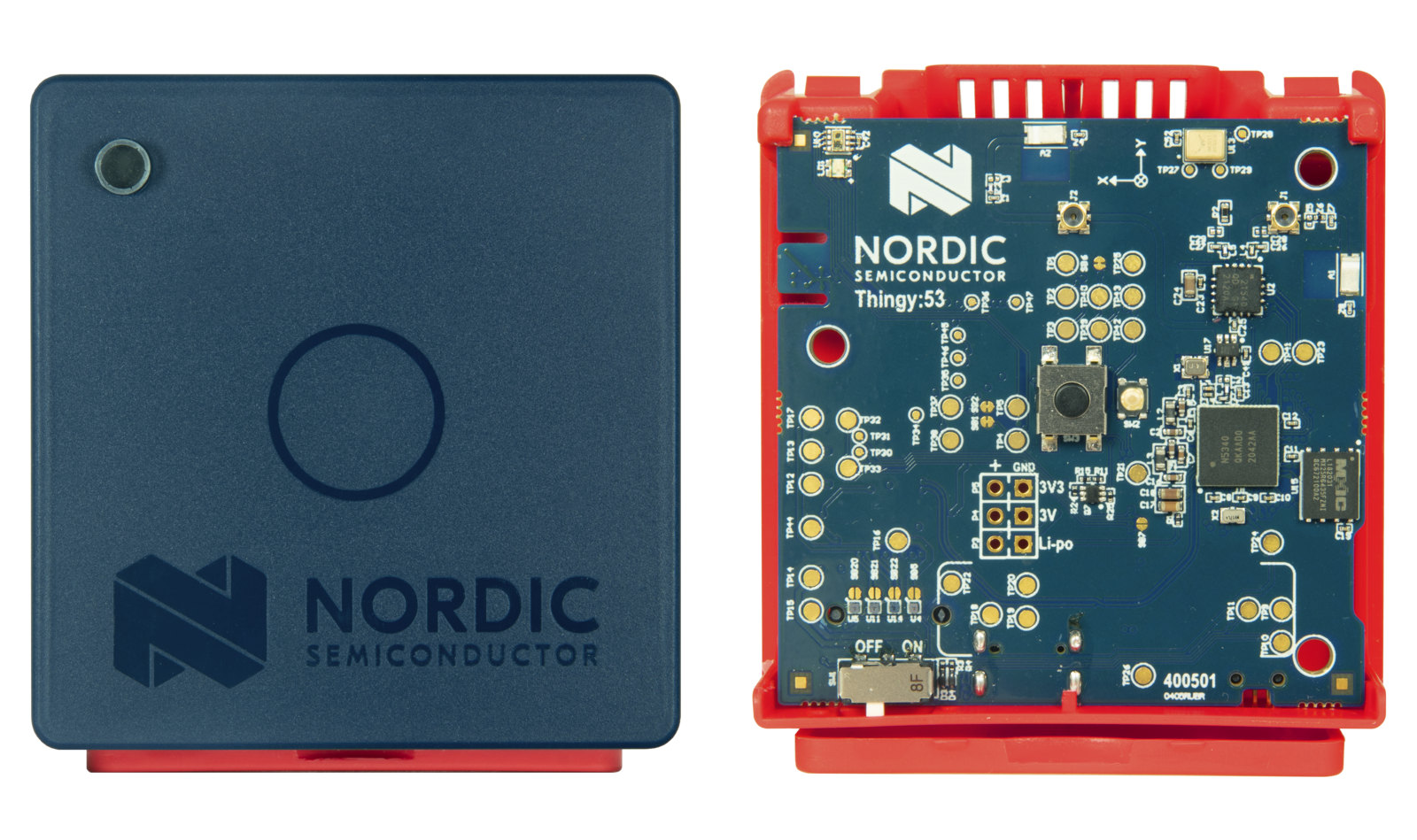
The Nordic Thingy:53™ is an easy-to-use prototyping platform, it makes it possible to create prototypes and proof-of-concepts without the need to build custom hardware. Thingy:53 is built around the [nRF5340 SoC](https://www.nordicsemi.com/Products/nRF5340). The capacity of its dual Arm Cortex-M33 processors enables it to do embedded machine learning (ML), both collecting data and running trained ML models on the device. The Bluetooth Low Energy radio allows it to connect to smart phones, tablets, laptops and similar devices, without the need for a wired connection. Other protocols like Thread, Zigbee and proprietary 2.4 GHz protocols are also supported by the radio. It also includes a well of different integrated sensors, an NFC antenna, and has two buttons and one RGB LED that simplifies input and output.
Nordic's Thingy:53 is fully supported by Edge Impulse and every Thingy:53 is shipped with [Edge Impulse firmware](https://github.com/edgeimpulse/firmware-nordic-thingy53) already flashed. You'll be able to sample raw data, build models, and deploy trained machine learning models directly out-of-the-box via the Edge Impulse Studio or the Nordic nRF Edge Impulse [iPhone](https://apps.apple.com/us/app/nrf-edge-impulse/id1557234087) and [Android](https://play.google.com/store/apps/details?id=no.nordicsemi.android.nrfei) apps over BLE connection.
The Edge Impulse firmware for this development board is open source and hosted on GitHub: [edgeimpulse/firmware-nordic-thingy53](https://github.com/edgeimpulse/firmware-nordic-thingy53).
 ### Installing dependencies
To set this device up in Edge Impulse via USB serial or external debug probe, you will need to install the following software:
1. [nRF Connect for Desktop v3.11.1](https://www.nordicsemi.com/Products/Development-tools/nrf-connect-for-desktop) (only needed to update device firmware through USB or external debug probe).
2. [Edge Impulse CLI](/tools/clis/edge-impulse-cli/installation).
3. On Linux:
* GNU Screen: install for example via `sudo apt install screen`.
**Problems installing the CLI?**
See the [Installation and troubleshooting](/tools/clis/edge-impulse-cli/installation) guide.
#### Updating the firmware
A brand new Thingy:53 devices will work out-of-the-box with the Edge Impulse Studio and the Nordic nRF Edge Impulse [iPhone](https://apps.apple.com/us/app/nrf-edge-impulse/id1557234087) and [Android](https://play.google.com/store/apps/details?id=no.nordicsemi.android.nrfei) apps. However, if your device has been flashed with some other firmware, then follow the steps below to update your device to the latest Edge Impulse firmware.
##### 1. Connect the development board to your computer
Use a USB cable to connect the development board to your computer. Then, set the power switch to 'on'.
##### 2. Download the firmware
Download the latest Edge Impulse firmware:
* [Edge Impulse firmware: nordic-thingy53-full.zip](https://cdn.edgeimpulse.com/firmware/nordic-thingy53-full.zip)
* `*-full.zip` contains HEX files to upgrade the device through the external probe.
* [Edge Impulse firmware: nordic-thingy53-dfu.zip](https://cdn.edgeimpulse.com/firmware/nordic-thingy53-dfu.zip)
* `*-dfu.zip` contains `dfu_application.zip` package to upgrade the already flashed device through the Serial/USB bootloader.
##### 3. Update the firmware
Follow Nordic's [instructions](https://docs.nordicsemi.com/bundle/ncs-latest/page/nrf/app_dev/device_guides/thingy53/thingy53_precompiled.html#updating_precompiled_firmware) to update the firmware on the Thingy:53 through your choice of debugging connection:
* nRF Programmer (Bluetooth LE)
* Programmer app (USB)
* Programmer app (external debug probe)
* nRF Util
### Connecting to Edge Impulse
#### Through **nRF Edge Impulse** mobile app
See the section below on [Connecting to the nRF Edge Impulse mobile application](/hardware/boards/nordic-semi-thingy53#connecting-to-the-nrf-edge-impulse-mobile-application).
#### Through serial connection
With all the software in place it's time to connect the development board to Edge Impulse. From a command prompt or terminal, run:
```
edge-impulse-daemon
```
This starts a wizard which asks you to log in and choose an Edge Impulse project. If you want to switch projects run the command with `--clean`.
If prompted to select a device, choose `ZEPHYR`:
```
? Which device do you want to connect to?
❯ /dev/tty.usbmodem141301 (ZEPHYR)
```
Alternatively, recent versions of Google Chrome and Microsoft Edge can collect data directly from your development board, without the need for the Edge Impulse CLI. See [this blog post](https://edgeimpulse.com/blog/collect-sensor-data-straight-from-your-web-browser) for more information.
#### Verifying connection of device
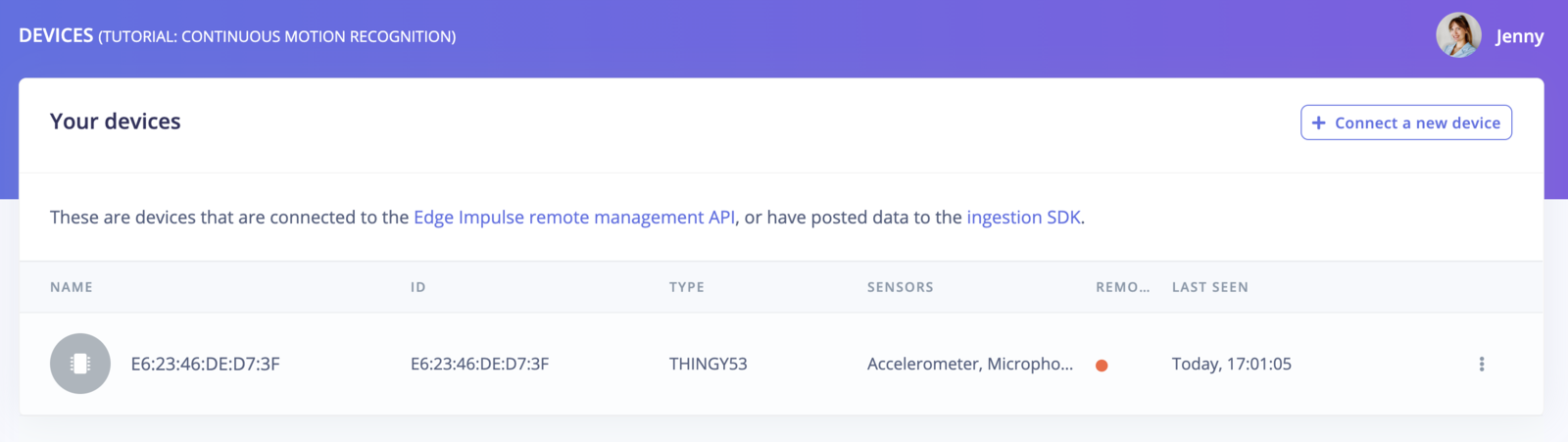
That's all! Your device is now connected to Edge Impulse. To verify this, go to [your Edge Impulse project](https://studio.edgeimpulse.com/studio/profile/projects), and click **Devices**. The device will be listed here.
### Installing dependencies
To set this device up in Edge Impulse via USB serial or external debug probe, you will need to install the following software:
1. [nRF Connect for Desktop v3.11.1](https://www.nordicsemi.com/Products/Development-tools/nrf-connect-for-desktop) (only needed to update device firmware through USB or external debug probe).
2. [Edge Impulse CLI](/tools/clis/edge-impulse-cli/installation).
3. On Linux:
* GNU Screen: install for example via `sudo apt install screen`.
**Problems installing the CLI?**
See the [Installation and troubleshooting](/tools/clis/edge-impulse-cli/installation) guide.
#### Updating the firmware
A brand new Thingy:53 devices will work out-of-the-box with the Edge Impulse Studio and the Nordic nRF Edge Impulse [iPhone](https://apps.apple.com/us/app/nrf-edge-impulse/id1557234087) and [Android](https://play.google.com/store/apps/details?id=no.nordicsemi.android.nrfei) apps. However, if your device has been flashed with some other firmware, then follow the steps below to update your device to the latest Edge Impulse firmware.
##### 1. Connect the development board to your computer
Use a USB cable to connect the development board to your computer. Then, set the power switch to 'on'.
##### 2. Download the firmware
Download the latest Edge Impulse firmware:
* [Edge Impulse firmware: nordic-thingy53-full.zip](https://cdn.edgeimpulse.com/firmware/nordic-thingy53-full.zip)
* `*-full.zip` contains HEX files to upgrade the device through the external probe.
* [Edge Impulse firmware: nordic-thingy53-dfu.zip](https://cdn.edgeimpulse.com/firmware/nordic-thingy53-dfu.zip)
* `*-dfu.zip` contains `dfu_application.zip` package to upgrade the already flashed device through the Serial/USB bootloader.
##### 3. Update the firmware
Follow Nordic's [instructions](https://docs.nordicsemi.com/bundle/ncs-latest/page/nrf/app_dev/device_guides/thingy53/thingy53_precompiled.html#updating_precompiled_firmware) to update the firmware on the Thingy:53 through your choice of debugging connection:
* nRF Programmer (Bluetooth LE)
* Programmer app (USB)
* Programmer app (external debug probe)
* nRF Util
### Connecting to Edge Impulse
#### Through **nRF Edge Impulse** mobile app
See the section below on [Connecting to the nRF Edge Impulse mobile application](/hardware/boards/nordic-semi-thingy53#connecting-to-the-nrf-edge-impulse-mobile-application).
#### Through serial connection
With all the software in place it's time to connect the development board to Edge Impulse. From a command prompt or terminal, run:
```
edge-impulse-daemon
```
This starts a wizard which asks you to log in and choose an Edge Impulse project. If you want to switch projects run the command with `--clean`.
If prompted to select a device, choose `ZEPHYR`:
```
? Which device do you want to connect to?
❯ /dev/tty.usbmodem141301 (ZEPHYR)
```
Alternatively, recent versions of Google Chrome and Microsoft Edge can collect data directly from your development board, without the need for the Edge Impulse CLI. See [this blog post](https://edgeimpulse.com/blog/collect-sensor-data-straight-from-your-web-browser) for more information.
#### Verifying connection of device
That's all! Your device is now connected to Edge Impulse. To verify this, go to [your Edge Impulse project](https://studio.edgeimpulse.com/studio/profile/projects), and click **Devices**. The device will be listed here.
 ### Next steps: building a machine learning model
With everything set up you can now build your first machine learning model with this tutorial:
* [Building a continuous motion recognition system](/tutorials/end-to-end/motion-recognition).
Looking to connect different sensors? The [Data forwarder](/tools/clis/edge-impulse-cli/data-forwarder) lets you easily send data from any sensor into Edge Impulse.
### Connecting to the nRF Edge Impulse mobile application
Now that you have created an Edge Impulse account and trained your first Edge Impulse machine learning model, using the **Nordic nRF Edge Impulse** app you can deploy your impulse to your Nordic Thingy:53 and acquire/upload new sensor data into your Edge Impulse projects.
#### Installation & Login
1. Download and install the **Nordic nRF Edge Impulse** app for your [iPhone](https://apps.apple.com/us/app/nrf-edge-impulse/id1557234087) or [Android](https://play.google.com/store/apps/details?id=no.nordicsemi.android.nrfei) phone.
2. Open the app and login with your edgeimpulse.com credentials:
### Next steps: building a machine learning model
With everything set up you can now build your first machine learning model with this tutorial:
* [Building a continuous motion recognition system](/tutorials/end-to-end/motion-recognition).
Looking to connect different sensors? The [Data forwarder](/tools/clis/edge-impulse-cli/data-forwarder) lets you easily send data from any sensor into Edge Impulse.
### Connecting to the nRF Edge Impulse mobile application
Now that you have created an Edge Impulse account and trained your first Edge Impulse machine learning model, using the **Nordic nRF Edge Impulse** app you can deploy your impulse to your Nordic Thingy:53 and acquire/upload new sensor data into your Edge Impulse projects.
#### Installation & Login
1. Download and install the **Nordic nRF Edge Impulse** app for your [iPhone](https://apps.apple.com/us/app/nrf-edge-impulse/id1557234087) or [Android](https://play.google.com/store/apps/details?id=no.nordicsemi.android.nrfei) phone.
2. Open the app and login with your edgeimpulse.com credentials:
 3. Select your Thingy:53 project from the drop-down menu at the top:
 #### Connect or remove a device
Select the **Devices** tab to connect to your Thingy:53 device to your mobile phone:
#### Connect or remove a device
Select the **Devices** tab to connect to your Thingy:53 device to your mobile phone:


 To remove your connected Thingy:53 from your project, select the connected device name and scroll to the bottom of the device page to remove it.

 #### Data Acquisition
To view existing data samples in your Edge Impulse project, select the **Data Acquisition** tab. To record and upload a new data sample into your project, click on the **"+"** button at the top right of the app. Select your sensor, type in the sample label, and choose a sample length and frequency, then select **Start Sampling**.
#### Data Acquisition
To view existing data samples in your Edge Impulse project, select the **Data Acquisition** tab. To record and upload a new data sample into your project, click on the **"+"** button at the top right of the app. Select your sensor, type in the sample label, and choose a sample length and frequency, then select **Start Sampling**.


 #### Deployment
Build and deploy your Edge Impulse model to your Thingy:53 via the **Deployment** tab. Select your project from the top drop-down, select your connected Thingy:53 device, and click **Build**:
#### Deployment
Build and deploy your Edge Impulse model to your Thingy:53 via the **Deployment** tab. Select your project from the top drop-down, select your connected Thingy:53 device, and click **Build**:
 The app will start building your project and uploading the firmware to the connected Thingy:53:


 If you encounter connection errors during deployment, please see [Troubleshooting](/hardware/boards/nordic-semi-thingy53#troubleshooting).
#### Inferencing
Every Thingy:53 is shipped with a default Edge Impulse model. This model is created from the [Tutorial: Continuous motion recognition](/tutorials/end-to-end/motion-recognition) and it's [corresponding Edge Impulse project](https://studio.edgeimpulse.com/public/14299/latest).
Select the **Inferencing** tab to view the inference results of the model flashed to the connected Thingy:53:
If you encounter connection errors during deployment, please see [Troubleshooting](/hardware/boards/nordic-semi-thingy53#troubleshooting).
#### Inferencing
Every Thingy:53 is shipped with a default Edge Impulse model. This model is created from the [Tutorial: Continuous motion recognition](/tutorials/end-to-end/motion-recognition) and it's [corresponding Edge Impulse project](https://studio.edgeimpulse.com/public/14299/latest).
Select the **Inferencing** tab to view the inference results of the model flashed to the connected Thingy:53:
 ### Using the Thingy53 with WiFi
The Nordic Thingy53 can also be using with the nRF7002eb expansion board as shown below.
### Using the Thingy53 with WiFi
The Nordic Thingy53 can also be using with the nRF7002eb expansion board as shown below.
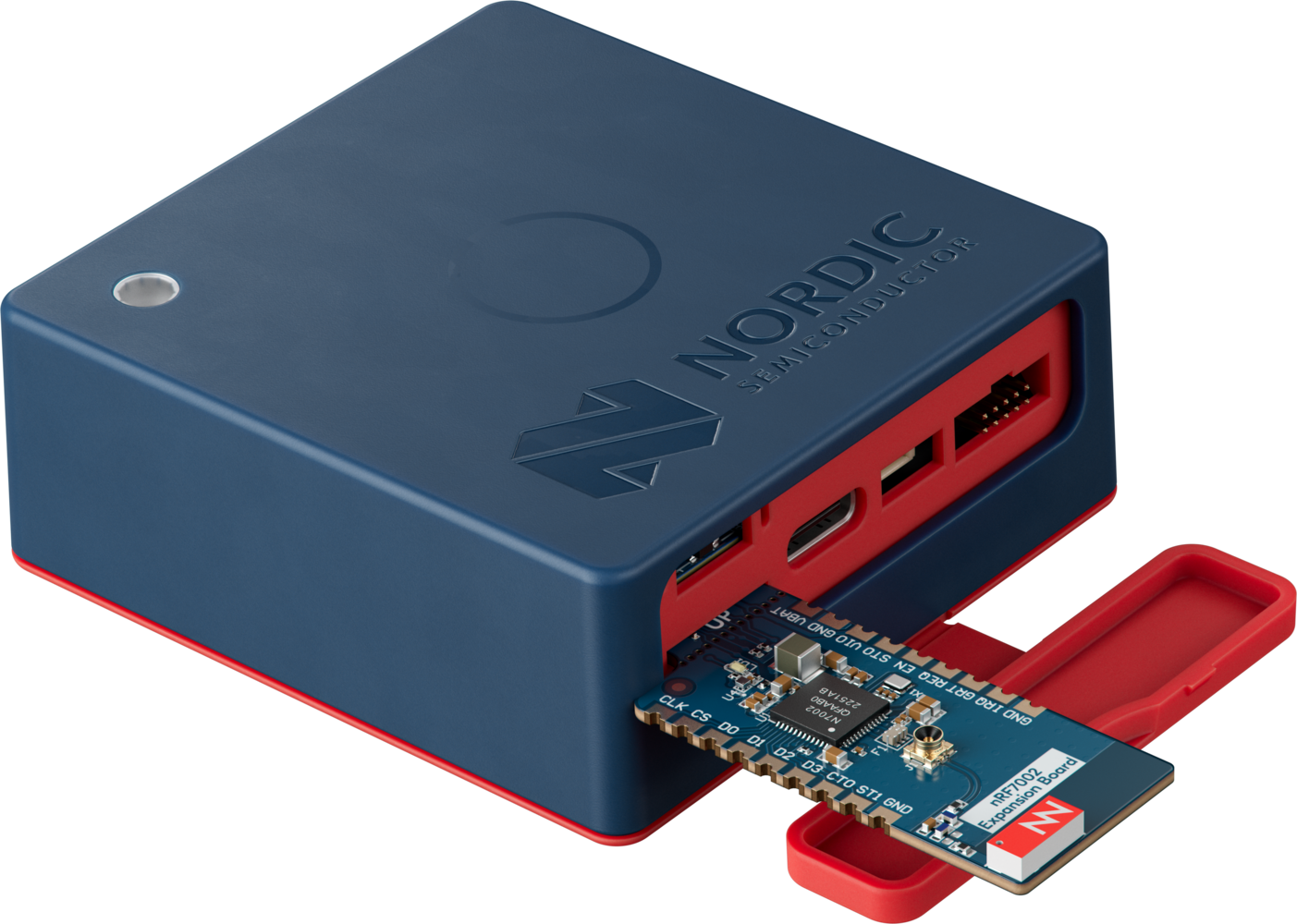 The nRF7002eb is a companion IC, providing seamless WiFi connectivity and WiFi-based locationing (SSID sniffing of local WiFi hubs). With WiFi 6 the nRF7002eb brings added benefits to IoT applications including further efficiency gains that support long-life, battery-powered WiFi operation.
With this expansion board, you will be able to collect and upload data from your Thingy53 to your application over a WiFi connection.
#### Update the firmware
The WiFi capabilities of the Thingy53 are sandboxed in a different firmware. This helps users to choose whether they want to use the WiFi module or not and prevents consumption of extra memory if they choose not to. Therefore, to enable the WiFi capabilities of Thingy53, download the following Edge Impulse firmware:
* [Edge Impulse firmware: nordic-thingy53-WiFi-full.zip](https://cdn.edgeimpulse.com/firmware/nordic-thingy53-nrf7002eb-full.zip)
* `*-full.zip` contains HEX files to upgrade the device through the external probe.
* [Edge Impulse firmware: nordic-thingy53-WiFi-dfu.zip](https://cdn.edgeimpulse.com/firmware/nordic-thingy53-nrf7002eb-dfu.zip)
* `*-dfu.zip` contains `dfu_application.zip` package to upgrade the already flashed device through the Serial/USB.
Connect the Thingy53 to your computer with a USB-C cable and update the firmware following instructions described in [section 3 of updating the firmware](/hardware/boards/nordic-semi-thingy53#updating-the-firmware).
#### Connect the Thingy53 to WiFi
Once the firmware has been updated, you will need to set up the WiFi connection between the Thingy53 and your WiFi. Make sure that the nRF7002eb WiFi module is plugged into the Thingy53 as shown in the image above. To setup the WiFi connection, simply run:
```
edge-impulse-daemon
```
This starts a wizard that helps you login to your Edge Impulse account and choose a project you want to connect your device to.
> **Note:** If you want to switch accounts, projects or WiFi network, run the command with `--clean`
When prompted to select a device, choose the option with the higher USB modem number:
```
? Which device do you want to connect to? (Use arrow keys)
❯ /dev/tty.usbmodem103 (ZEPHYR)
/dev/tty.usbmodem101 (ZEPHYR)
```
The wizard will now proceed to read the configuration of the device. If no WiFi connection is found, you will be prompted to connect to one. After you select `Yes`, it will proceed to scan for available WiFi networks:
```
? WiFi is not connected, do you want to set up a WiFi net
work now? Yes
Scanning WiFi networks...
```
Once scanning is complete, it will show you a list of available networks. You can use the arrow keys to select your network and proceed to enter the password. Once the Thingy53 is connected to the WiFi, the daemon will automatically disconnect as there's no need to keep a serial connection open.
```
? Select WiFi network (Use arrow keys)
❯ SSID: Vodafone-174C, Security: WPA2-PSK (1),RSSI: -54 dBm
SSID: Coyote, Security: WPA2-PSK (1),RSSI: -57 dBm
SSID: FRITZ!Box 7590 SH, Security: WPA2-PSK (1),RSSI: -64 dBm
SSID: Vodafone-7047, Security: WPA2-PSK (1),RSSI: -65 dBm
SSID: Vodafone-174C, Security: WPA2-PSK (1),RSSI: -66 dBm
SSID: FRITZ!Repeater 1200, Security: WPA2-PSK (1),RSSI: -73 dBm
? Enter password for network "Vodafone-174C" ...
Connecting to "Vodafone-174C"...
[SER] Serial is connected, trying to read config...
[SER] Retrieved configuration
[SER] Device is running AT command version 1.8.0
[SER] Device is connected over WiFi to remote management API, no need to run the daemon. Exiting...
```
You can now disconnect the USB-C cable and remove the physical connection of the Thingy53 to your computer.
#### Verifying connection of device
Now your device should be connected to the project you chose during the initial setup. To verify that the device is connected, navigate to the **Devices** tab of your project. The connected device should be listed here:
The nRF7002eb is a companion IC, providing seamless WiFi connectivity and WiFi-based locationing (SSID sniffing of local WiFi hubs). With WiFi 6 the nRF7002eb brings added benefits to IoT applications including further efficiency gains that support long-life, battery-powered WiFi operation.
With this expansion board, you will be able to collect and upload data from your Thingy53 to your application over a WiFi connection.
#### Update the firmware
The WiFi capabilities of the Thingy53 are sandboxed in a different firmware. This helps users to choose whether they want to use the WiFi module or not and prevents consumption of extra memory if they choose not to. Therefore, to enable the WiFi capabilities of Thingy53, download the following Edge Impulse firmware:
* [Edge Impulse firmware: nordic-thingy53-WiFi-full.zip](https://cdn.edgeimpulse.com/firmware/nordic-thingy53-nrf7002eb-full.zip)
* `*-full.zip` contains HEX files to upgrade the device through the external probe.
* [Edge Impulse firmware: nordic-thingy53-WiFi-dfu.zip](https://cdn.edgeimpulse.com/firmware/nordic-thingy53-nrf7002eb-dfu.zip)
* `*-dfu.zip` contains `dfu_application.zip` package to upgrade the already flashed device through the Serial/USB.
Connect the Thingy53 to your computer with a USB-C cable and update the firmware following instructions described in [section 3 of updating the firmware](/hardware/boards/nordic-semi-thingy53#updating-the-firmware).
#### Connect the Thingy53 to WiFi
Once the firmware has been updated, you will need to set up the WiFi connection between the Thingy53 and your WiFi. Make sure that the nRF7002eb WiFi module is plugged into the Thingy53 as shown in the image above. To setup the WiFi connection, simply run:
```
edge-impulse-daemon
```
This starts a wizard that helps you login to your Edge Impulse account and choose a project you want to connect your device to.
> **Note:** If you want to switch accounts, projects or WiFi network, run the command with `--clean`
When prompted to select a device, choose the option with the higher USB modem number:
```
? Which device do you want to connect to? (Use arrow keys)
❯ /dev/tty.usbmodem103 (ZEPHYR)
/dev/tty.usbmodem101 (ZEPHYR)
```
The wizard will now proceed to read the configuration of the device. If no WiFi connection is found, you will be prompted to connect to one. After you select `Yes`, it will proceed to scan for available WiFi networks:
```
? WiFi is not connected, do you want to set up a WiFi net
work now? Yes
Scanning WiFi networks...
```
Once scanning is complete, it will show you a list of available networks. You can use the arrow keys to select your network and proceed to enter the password. Once the Thingy53 is connected to the WiFi, the daemon will automatically disconnect as there's no need to keep a serial connection open.
```
? Select WiFi network (Use arrow keys)
❯ SSID: Vodafone-174C, Security: WPA2-PSK (1),RSSI: -54 dBm
SSID: Coyote, Security: WPA2-PSK (1),RSSI: -57 dBm
SSID: FRITZ!Box 7590 SH, Security: WPA2-PSK (1),RSSI: -64 dBm
SSID: Vodafone-7047, Security: WPA2-PSK (1),RSSI: -65 dBm
SSID: Vodafone-174C, Security: WPA2-PSK (1),RSSI: -66 dBm
SSID: FRITZ!Repeater 1200, Security: WPA2-PSK (1),RSSI: -73 dBm
? Enter password for network "Vodafone-174C" ...
Connecting to "Vodafone-174C"...
[SER] Serial is connected, trying to read config...
[SER] Retrieved configuration
[SER] Device is running AT command version 1.8.0
[SER] Device is connected over WiFi to remote management API, no need to run the daemon. Exiting...
```
You can now disconnect the USB-C cable and remove the physical connection of the Thingy53 to your computer.
#### Verifying connection of device
Now your device should be connected to the project you chose during the initial setup. To verify that the device is connected, navigate to the **Devices** tab of your project. The connected device should be listed here:
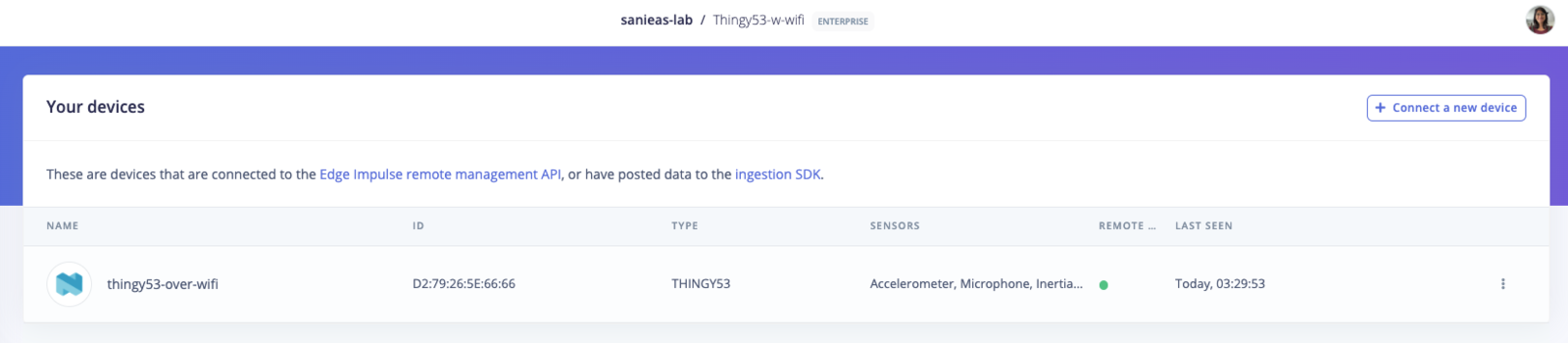 You can now move to the **Data acquisition** tab of your project and start collecting data without being restricted to where your computer is.
#### Flashing your model
When using the nRF7002eb expansion board, you will not be able to connect to the **Nordic nRF Edge Impulse** app on your phone. The best way to flash your model is by navigating to the **Deployment** tab of your project and downloading the built firmware from there. You can follow the instructions in [section 3 of updating the firmware](/hardware/boards/nordic-semi-thingy53#updating-the-firmware) to flash your model onto your device.
#### Inferencing
The firmware for the Thingy53 provided above, ships with a default motion detection model. This model is created from the [Tutorial: Continuous motion recognition](/tutorials/end-to-end/motion-recognition) and it's [corresponding Edge Impulse project](https://studio.edgeimpulse.com/public/14299/latest). To see the inferencing results of this model, reconnect the the device to your computer with a USB-C cable and run:
```
edge-impulse-run-inference
```
This will then display the inference results, in this case classify the motion of the Thingy53, in the terminal:
```
Inferencing settings:
Interval: 16.0000ms.
Frame size: 375
Sample length: 2000.00 ms.
No. of classes: 4
Starting inferencing in 2 seconds...
Predictions (DSP: 25 ms., Classification: 0 ms., Anomaly: 0 ms.):
idle: 0.996094
snake: 0.000000
updown: 0.000000
wave: 0.000000
anomaly score: -0.375301
```
The integration of the nRF7002eb with Edge Impulse allows users to integrate advanced machine learning models, enabling smarter and more responsive IoT applications with even more ease. The synergy between the nRF7002eb EK and Edge Impulse paves the way for innovative applications in areas such as predictive maintenance, anomaly detection, and real-time data analysis.
#### Settings
Select the **Settings** tab to view your logged-in account information, BLE scanner settings, and application version. Click on your account name to view your Edge Impulse projects and logout of your account.
You can now move to the **Data acquisition** tab of your project and start collecting data without being restricted to where your computer is.
#### Flashing your model
When using the nRF7002eb expansion board, you will not be able to connect to the **Nordic nRF Edge Impulse** app on your phone. The best way to flash your model is by navigating to the **Deployment** tab of your project and downloading the built firmware from there. You can follow the instructions in [section 3 of updating the firmware](/hardware/boards/nordic-semi-thingy53#updating-the-firmware) to flash your model onto your device.
#### Inferencing
The firmware for the Thingy53 provided above, ships with a default motion detection model. This model is created from the [Tutorial: Continuous motion recognition](/tutorials/end-to-end/motion-recognition) and it's [corresponding Edge Impulse project](https://studio.edgeimpulse.com/public/14299/latest). To see the inferencing results of this model, reconnect the the device to your computer with a USB-C cable and run:
```
edge-impulse-run-inference
```
This will then display the inference results, in this case classify the motion of the Thingy53, in the terminal:
```
Inferencing settings:
Interval: 16.0000ms.
Frame size: 375
Sample length: 2000.00 ms.
No. of classes: 4
Starting inferencing in 2 seconds...
Predictions (DSP: 25 ms., Classification: 0 ms., Anomaly: 0 ms.):
idle: 0.996094
snake: 0.000000
updown: 0.000000
wave: 0.000000
anomaly score: -0.375301
```
The integration of the nRF7002eb with Edge Impulse allows users to integrate advanced machine learning models, enabling smarter and more responsive IoT applications with even more ease. The synergy between the nRF7002eb EK and Edge Impulse paves the way for innovative applications in areas such as predictive maintenance, anomaly detection, and real-time data analysis.
#### Settings
Select the **Settings** tab to view your logged-in account information, BLE scanner settings, and application version. Click on your account name to view your Edge Impulse projects and logout of your account.

 ### Troubleshooting
**Lost BLE connection to device**
* Reconnect your device by selecting your device name on the **Devices** tab and click "Reconnect".
* Make sure power cables are plugged in properly.
* Do not use iPhone/Android app multitasking during data acquisition, firmware deployment, or inferencing tasks, as the BLE streaming connection will be closed.
**Switch WiFi network or project**
* Reconnect your device to your computer using a USB-C cable.
* Run `edge-impulse-daemon --clean`. End the process by pressing `CTRL+c` on your keyboard, do not login at this step.
* Disconnect the Thingy53 and restart using the switch on the side.
* Reconnect to your computer and run `edge-impulse-daemon`. Follow instructions above to choose a different project of WiFi network.
### Troubleshooting
**Lost BLE connection to device**
* Reconnect your device by selecting your device name on the **Devices** tab and click "Reconnect".
* Make sure power cables are plugged in properly.
* Do not use iPhone/Android app multitasking during data acquisition, firmware deployment, or inferencing tasks, as the BLE streaming connection will be closed.
**Switch WiFi network or project**
* Reconnect your device to your computer using a USB-C cable.
* Run `edge-impulse-daemon --clean`. End the process by pressing `CTRL+c` on your keyboard, do not login at this step.
* Disconnect the Thingy53 and restart using the switch on the side.
* Reconnect to your computer and run `edge-impulse-daemon`. Follow instructions above to choose a different project of WiFi network.