> ## Documentation Index
> Fetch the complete documentation index at: https://docs.edgeimpulse.com/llms.txt
> Use this file to discover all available pages before exploring further.
# Nordic Semi nRF54L15 DK
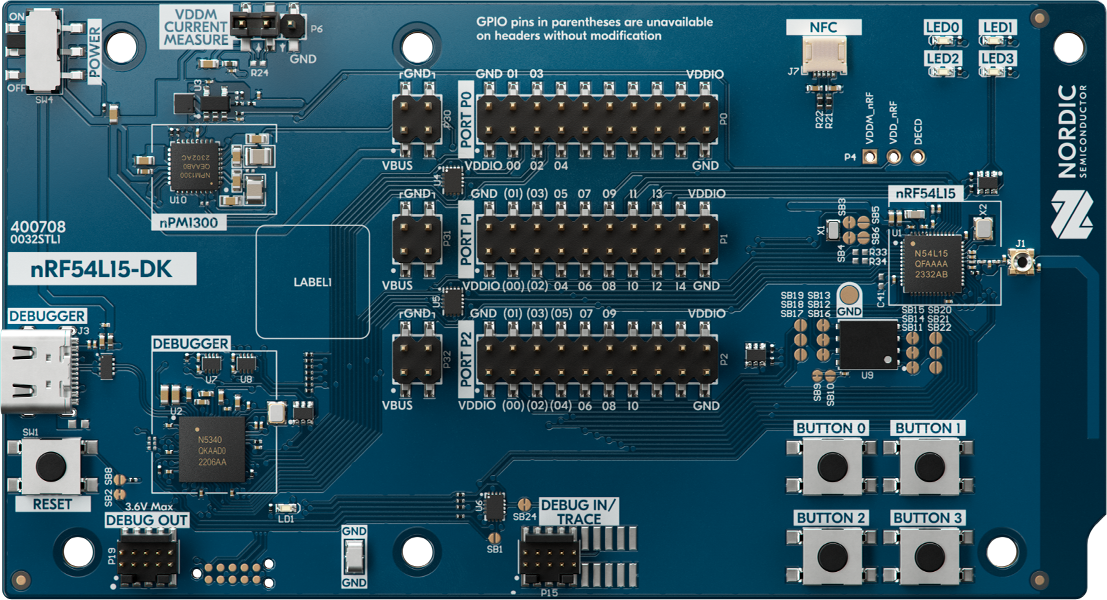
The Nordic Semiconductor nRF54L15 DK is a development board featuring the advanced nRF54L15 SoC — part of the nRF54L Series — which offers excellent performance and ultra-low power consumption. The DK allows for development and emulation of nRF54L15, nRF54L10, and nRF54L05 SoCs, and includes support for a wide range of applications with the nRF Connect SDK and tools.
The nRF54L15 DK is fully supported by Edge Impulse. You'll be able to sample raw sensor data, build and train machine learning models, and deploy them directly from the Edge Impulse Studio. This devkit does not include onboard sensors, so we recommend connecting it to a [X-NUCLEO-IKS02A1](https://www.st.com/en/ecosystems/x-nucleo-iks02a1.html) shield for accelerometer input.
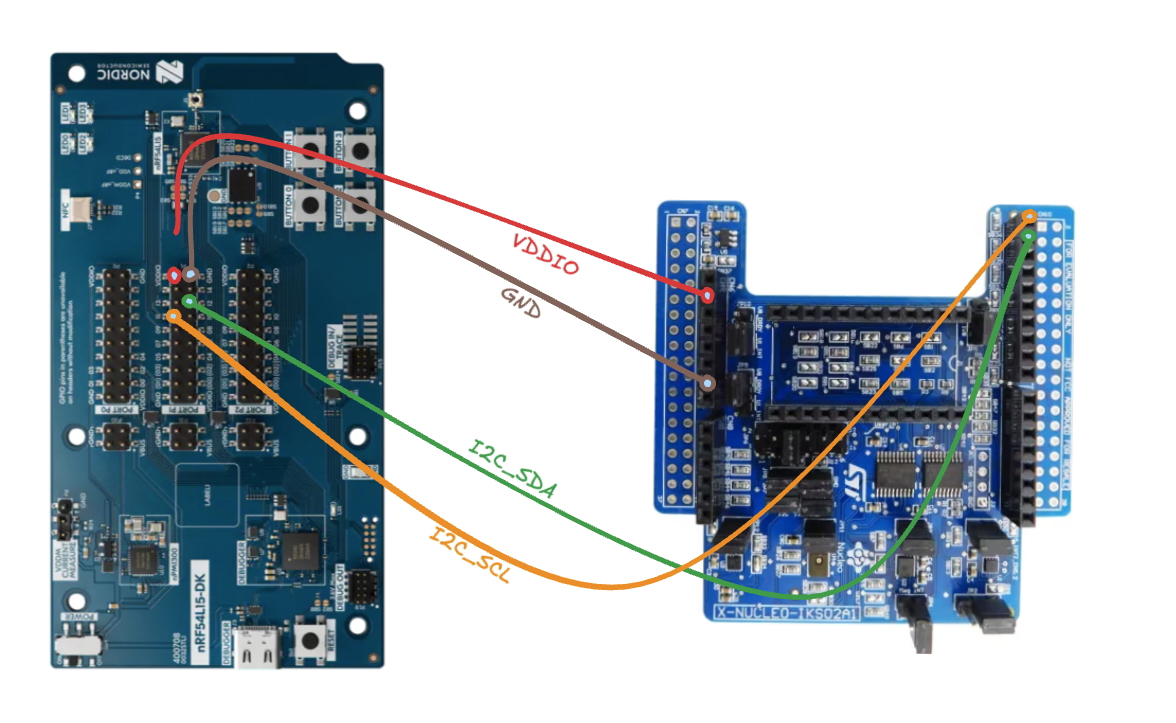
> **Note:** This devkit does not support stacking the shield directly. You’ll need to manually wire the IKS02A1 shield to the DK. A wiring diagram is available below.
If you prefer a different sensor, you can also use the [Data forwarder](/tools/clis/edge-impulse-cli/data-forwarder), or modify the example firmware (built with nRF Connect SDK and Zephyr RTOS) to support any Zephyr-compatible accelerometers.
The Edge Impulse firmware for this development board is open source and hosted on GitHub: [edgeimpulse/firmware-nrf54l15](https://github.com/edgeimpulse/firmware-nordic-nrf54l15dk).
 ### Connecting to Edge Impulse
With software in place, here’s how to wire and connect the devkit.
#### 1. Wiring the IKS02A1 MEMS sensor shield
Unlike the nRF9161 DK, the nRF54L15 DK does not support direct stacking with the IKS02A1 shield. You must wire it manually. Use the following connections:
| nRF54L15 DK Pin | IKS02A1 Pin | Description |
| --------------- | ----------- | ------------ |
| VDDIO | VIO | Power (1.8V) |
| GND | GND | Ground |
| P1.12 | SDA | I2C data |
| P1.11 | SCL | I2C clock |
### Connecting to Edge Impulse
With software in place, here’s how to wire and connect the devkit.
#### 1. Wiring the IKS02A1 MEMS sensor shield
Unlike the nRF9161 DK, the nRF54L15 DK does not support direct stacking with the IKS02A1 shield. You must wire it manually. Use the following connections:
| nRF54L15 DK Pin | IKS02A1 Pin | Description |
| --------------- | ----------- | ------------ |
| VDDIO | VIO | Power (1.8V) |
| GND | GND | Ground |
| P1.12 | SDA | I2C data |
| P1.11 | SCL | I2C clock |
 #### 2. Connect the development board to your computer
Use a USB-C cable to connect the board. Then set the power switch to "on".
#### 3. Download the latest Edge Impulse firmware
Download the latest [Edge Impulse Nordic Semi nRF54L15 DK firmware](https://cdn.edgeimpulse.com/firmware/nrf54l15-dk.zip).
#### 4. Flash the Edge Impulse firmware
1. Connect the board over USB and ensure it appears as a JLINK USB device.
2. Install and open the [nRF Connect for Desktop](https://www.nordicsemi.com/Products/Development-tools/nRF-Connect-for-Desktop) and go to the Programmer application
3. Drag and drop the `nrf54l15-dk-full.hex` firmware from the downloaded zip in this Programmer application (this firmware contains both application and networking core firmware).
4. Click “Erase & Write” and wait for device to boot up.
#### 5. Link the device to your Edge Impulse project
Open a terminal and run:
```bash theme={"system"}
edge-impulse-daemon
```
Log in when prompted and select your Edge Impulse project.
You may be asked to select a UART interface. Choose the first SEGGER option:
```
? Which device do you want to connect to?
❯ /dev/tty.usbmodemXXXXXX (SEGGER)
/dev/tty.usbmodemXXXXXX (SEGGER)
```
### Next steps: build your ML model
Now that you're connected:
* [Build a continuous motion recognition system](/tutorials/end-to-end/motion-recognition)
* [Recognize sounds from audio](/tutorials/end-to-end/sound-recognition)
* [Detect keywords in speech](/tutorials/end-to-end/keyword-spotting)
Looking to use other sensors? Use the [Data forwarder](/tools/clis/edge-impulse-cli/data-forwarder) to stream data from any microcontroller or sensor.
#### 2. Connect the development board to your computer
Use a USB-C cable to connect the board. Then set the power switch to "on".
#### 3. Download the latest Edge Impulse firmware
Download the latest [Edge Impulse Nordic Semi nRF54L15 DK firmware](https://cdn.edgeimpulse.com/firmware/nrf54l15-dk.zip).
#### 4. Flash the Edge Impulse firmware
1. Connect the board over USB and ensure it appears as a JLINK USB device.
2. Install and open the [nRF Connect for Desktop](https://www.nordicsemi.com/Products/Development-tools/nRF-Connect-for-Desktop) and go to the Programmer application
3. Drag and drop the `nrf54l15-dk-full.hex` firmware from the downloaded zip in this Programmer application (this firmware contains both application and networking core firmware).
4. Click “Erase & Write” and wait for device to boot up.
#### 5. Link the device to your Edge Impulse project
Open a terminal and run:
```bash theme={"system"}
edge-impulse-daemon
```
Log in when prompted and select your Edge Impulse project.
You may be asked to select a UART interface. Choose the first SEGGER option:
```
? Which device do you want to connect to?
❯ /dev/tty.usbmodemXXXXXX (SEGGER)
/dev/tty.usbmodemXXXXXX (SEGGER)
```
### Next steps: build your ML model
Now that you're connected:
* [Build a continuous motion recognition system](/tutorials/end-to-end/motion-recognition)
* [Recognize sounds from audio](/tutorials/end-to-end/sound-recognition)
* [Detect keywords in speech](/tutorials/end-to-end/keyword-spotting)
Looking to use other sensors? Use the [Data forwarder](/tools/clis/edge-impulse-cli/data-forwarder) to stream data from any microcontroller or sensor.