> ## Documentation Index
> Fetch the complete documentation index at: https://docs.edgeimpulse.com/llms.txt
> Use this file to discover all available pages before exploring further.
# Innodisk EXEC-Q911
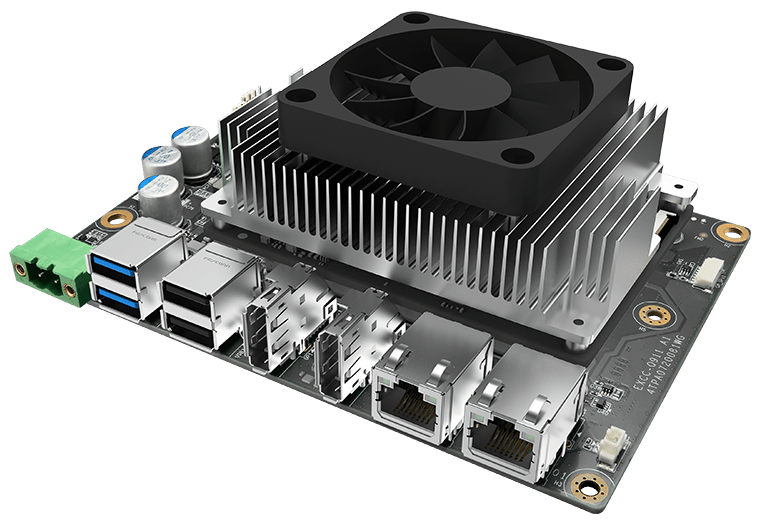
The Innodisk EXEC-Q911 is a complete starter kit featuring a COM-HPC Mini Module and carrier board for immediate development and evaluation. The COM-HPC Mini Module leverages Qualcomm’s latest innovation—the Dragonwing™ IQ-9075 SoC—to deliver high AI computing performance with low power consumption. Combined with Innodisk’s comprehensive customization services and self-developed software toolkit, it provides customers with a fast, time-to-market solution to stay ahead in the edge AI era. Innodisk leverages this innovation to develop the EXEC-Q911 starter kit, integrating a COM-HPC Mini Module and carrier board to deliver ready-to-use, high-performance, reliable, and scalable on-device AI computing with low power consumption at the edge.
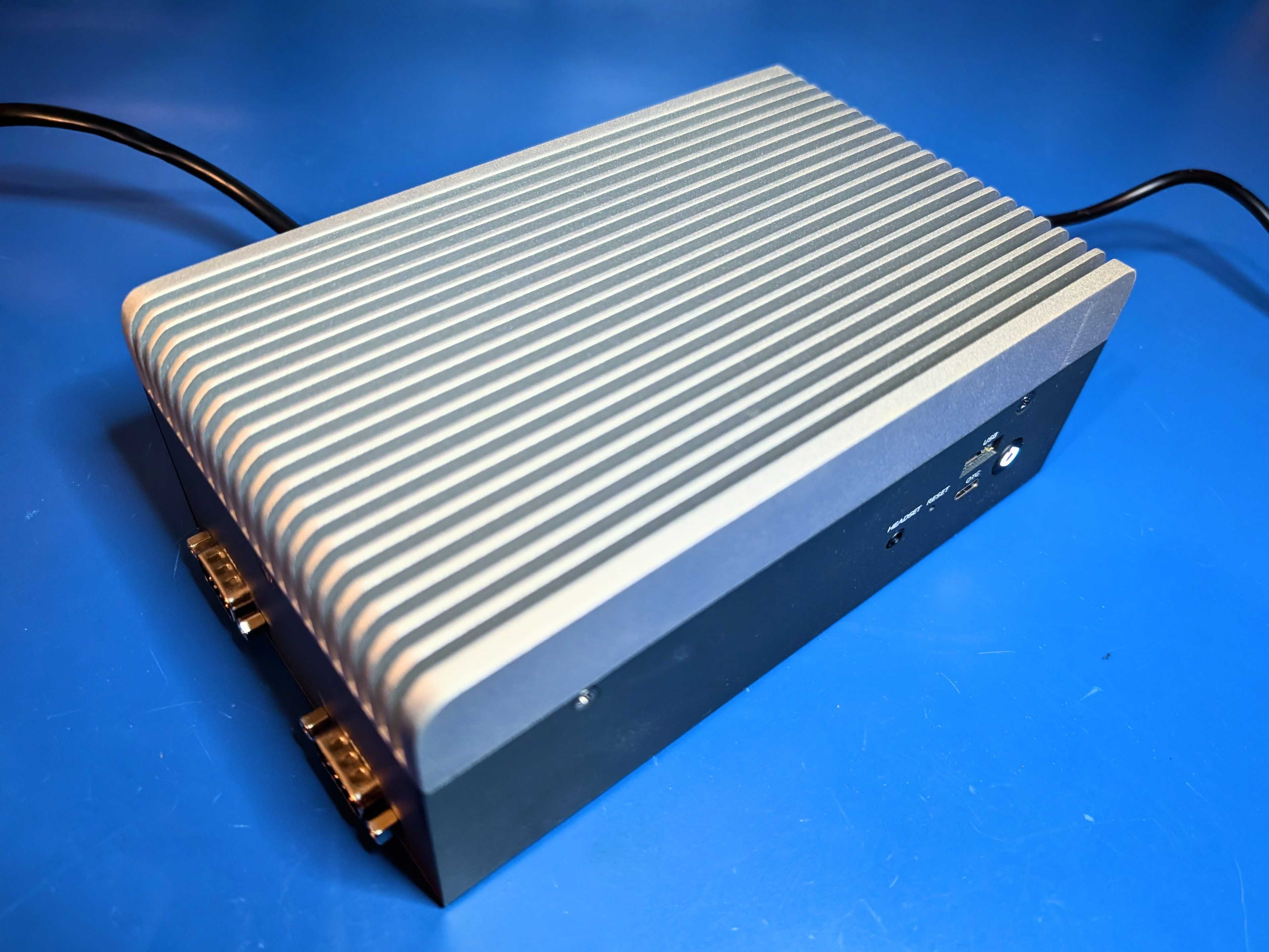
 The device we used for testing and creating this documentation is the fanless & fully enclosed version, APEX-A100:
 KEY FEATURES:
* Ready-to-use starter kit with COM-HPC Mini Module and carrier board
* Up to 36 GB onboard memory and 128 GB UFS 3.1 storage
* Dual 2.5G Ethernet and dual 4-lane MIPI CSI-2 interfaces
* Industrial-grade Operating Temperature: EXEC-Q911 (IQ9 COM-HPC Mini Module Starter Kit): -40°C to 85°C (Ta); APEX-A100 (IQ9 Edge AI Box): -40°C to 70°C (Ta)
* Long-term chipset longevity supported through 2038
## Setting Up Your Innodisk EXEC-Q911
### Configuring Ubuntu 24
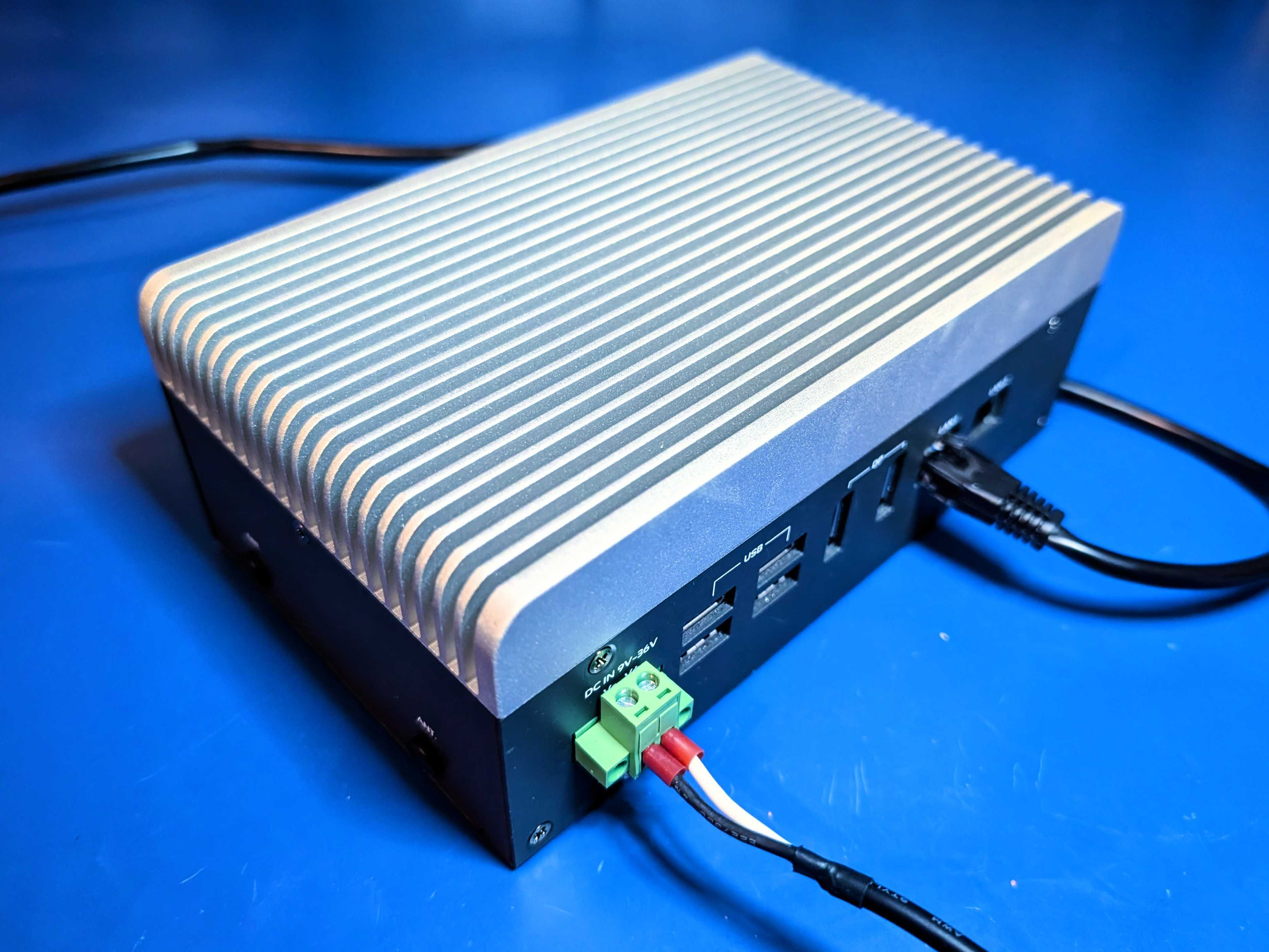
The Innodisk EXEC-Q911 and APEX-A100 do not have WiFi as it is uncommon in industrial applications, so an ethernet cable on LAN1 is required.
KEY FEATURES:
* Ready-to-use starter kit with COM-HPC Mini Module and carrier board
* Up to 36 GB onboard memory and 128 GB UFS 3.1 storage
* Dual 2.5G Ethernet and dual 4-lane MIPI CSI-2 interfaces
* Industrial-grade Operating Temperature: EXEC-Q911 (IQ9 COM-HPC Mini Module Starter Kit): -40°C to 85°C (Ta); APEX-A100 (IQ9 Edge AI Box): -40°C to 70°C (Ta)
* Long-term chipset longevity supported through 2038
## Setting Up Your Innodisk EXEC-Q911
### Configuring Ubuntu 24
The Innodisk EXEC-Q911 and APEX-A100 do not have WiFi as it is uncommon in industrial applications, so an ethernet cable on LAN1 is required.
 The Innodisk pre-installed image is Yocto Linux. However, an Ubuntu 24.04 image can be provided by request for users to flash and update. Connect a monitor and mouse/keyboard to login with the default username `ubuntu` and password `innodisk` or if you prefer to SSH and can get the box's IP address from your router then just skip straight to that:
Open a command prompt or terminal and run:
```bash theme={"system"}
ssh ubuntu@
```
Your board is now ready to start installing the prerequisites for using Edge Impulse with the Innodisk EXEC-Q911.
### Installing drivers, AI Engine Direct and the IM-SDK
Now let's install GPU drivers and the Qualcomm AI Engine Direct SDK (to run neural networks).
From the terminal or ssh session on your development board, run:
1. Install some base packages:
```bash theme={"system"}
sudo apt update
sudo apt install -y unzip wget curl python3 python3-pip python3-venv software-properties-common
```
2. Download and install the AI Engine Direct SDK library and development headers:
```bash theme={"system"}
# Add the Qualcomm IoT PPA (if it doesn't exist yet)
if [ ! -f /etc/apt/sources.list.d/ubuntu-qcom-iot-ubuntu-qcom-ppa-noble.list ]; then
sudo apt-add-repository -y ppa:ubuntu-qcom-iot/qcom-ppa
fi
# Install the AI Engine Direct SDK library and development headers
sudo apt install -y libqnn1 libsnpe1 libqnn-dev libsnpe-dev
```
3. Install OpenCL GPU drivers:
```bash theme={"system"}
sudo apt update
sudo apt install -y clinfo qcom-adreno1
# Symlink OpenCL library to /usr/lib/
if [ ! -f /usr/lib/libOpenCL.so ]; then
sudo ln -s /lib/aarch64-linux-gnu/libOpenCL.so.1.0.0 /usr/lib/libOpenCL.so
fi
# Reboot the device
sudo reboot
# Verify installation
clinfo
# ... Should return
# Number of platforms 1
# Platform Name QUALCOMM Snapdragon(TM)
# Platform Vendor QUALCOMM
# Platform Version OpenCL 3.0 QUALCOMM build: 0808.0.7
```
## Next steps: building a machine learning model
With everything set up you can now build your first machine learning model with these tutorials:
* [Responding to your voice](/tutorials/end-to-end/keyword-spotting)
* [Recognize sounds from audio](/tutorials/end-to-end/sound-recognition)
* [Adding sight to your sensors](/tutorials/end-to-end/image-classification)
* [Object detection](/tutorials/end-to-end/object-detection-bounding-boxes)
* [Visual anomaly detection with FOMO-AD](/studio/projects/learning-blocks/blocks/visual-anomaly-detection-fomo-ad)
Looking to connect different sensors? Our [Linux SDK](/tools/libraries/sdks/inference/linux) lets you easily send data from any sensor and any programming language (with examples in Node.js, Python, Go and C++) into Edge Impulse.
## Profiling your models
To profile your models for the Innodisk EXEC-Q911:
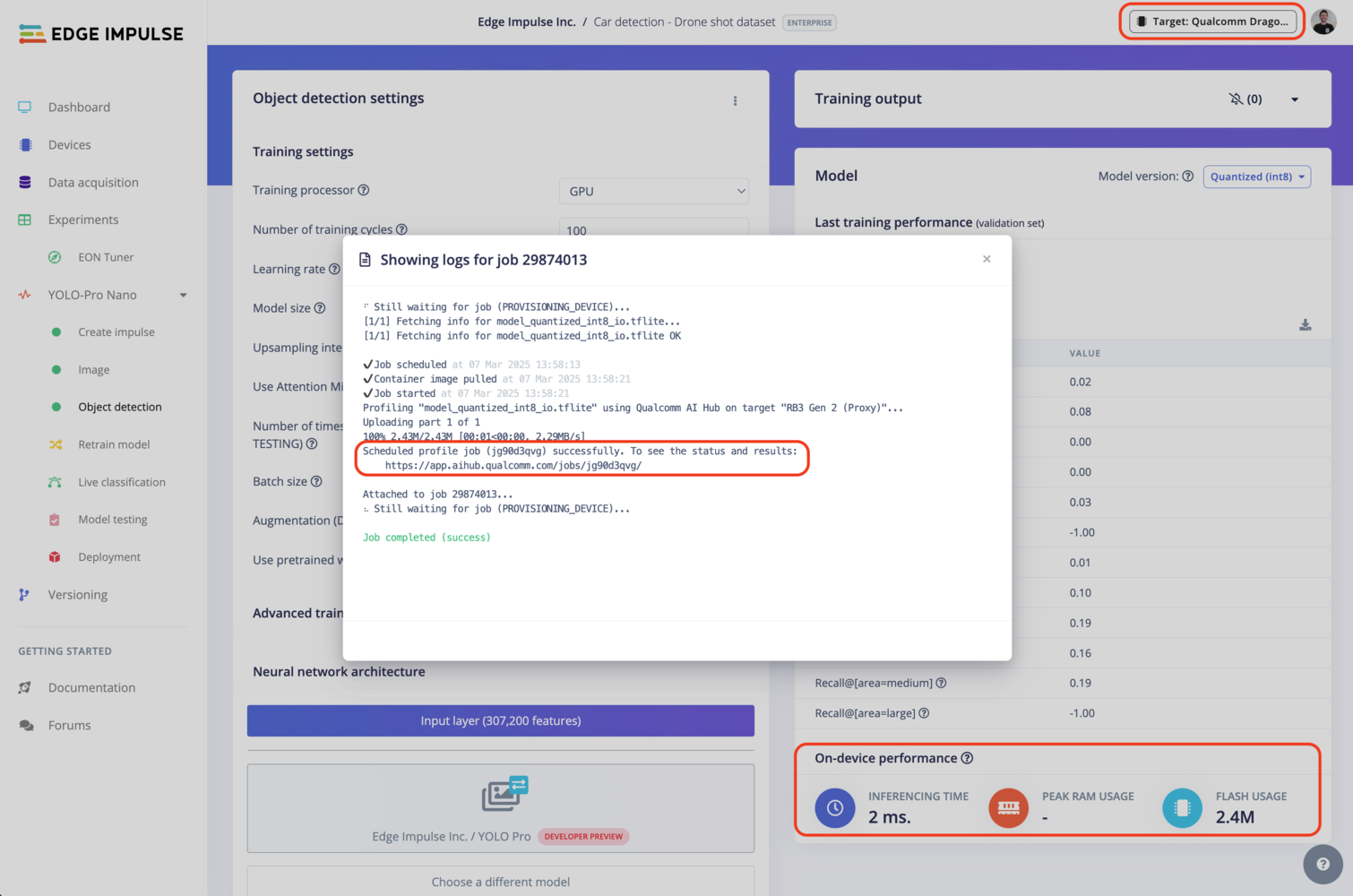
* Make sure to select the Dragonwing IQ-9075 as your target device. You can change the target at the top of the page near your user's logo.
* Head to your [Learning block](/studio/projects/learning-blocks) page in Edge Impulse Studio.
* Click on the **Calculate performance** button.
To provide the on-device performance, we use [Qualcomm® AI Hub](https://aihub.qualcomm.com/) in the background (see the image below) which run the compiled model on a physical device to gather metrics such as the mapping of model layers to compute units, inference latency, and peak memory usage. See more on Qualcomm® AI Hub [documentation](https://app.aihub.qualcomm.com/docs/) page.
The Innodisk pre-installed image is Yocto Linux. However, an Ubuntu 24.04 image can be provided by request for users to flash and update. Connect a monitor and mouse/keyboard to login with the default username `ubuntu` and password `innodisk` or if you prefer to SSH and can get the box's IP address from your router then just skip straight to that:
Open a command prompt or terminal and run:
```bash theme={"system"}
ssh ubuntu@
```
Your board is now ready to start installing the prerequisites for using Edge Impulse with the Innodisk EXEC-Q911.
### Installing drivers, AI Engine Direct and the IM-SDK
Now let's install GPU drivers and the Qualcomm AI Engine Direct SDK (to run neural networks).
From the terminal or ssh session on your development board, run:
1. Install some base packages:
```bash theme={"system"}
sudo apt update
sudo apt install -y unzip wget curl python3 python3-pip python3-venv software-properties-common
```
2. Download and install the AI Engine Direct SDK library and development headers:
```bash theme={"system"}
# Add the Qualcomm IoT PPA (if it doesn't exist yet)
if [ ! -f /etc/apt/sources.list.d/ubuntu-qcom-iot-ubuntu-qcom-ppa-noble.list ]; then
sudo apt-add-repository -y ppa:ubuntu-qcom-iot/qcom-ppa
fi
# Install the AI Engine Direct SDK library and development headers
sudo apt install -y libqnn1 libsnpe1 libqnn-dev libsnpe-dev
```
3. Install OpenCL GPU drivers:
```bash theme={"system"}
sudo apt update
sudo apt install -y clinfo qcom-adreno1
# Symlink OpenCL library to /usr/lib/
if [ ! -f /usr/lib/libOpenCL.so ]; then
sudo ln -s /lib/aarch64-linux-gnu/libOpenCL.so.1.0.0 /usr/lib/libOpenCL.so
fi
# Reboot the device
sudo reboot
# Verify installation
clinfo
# ... Should return
# Number of platforms 1
# Platform Name QUALCOMM Snapdragon(TM)
# Platform Vendor QUALCOMM
# Platform Version OpenCL 3.0 QUALCOMM build: 0808.0.7
```
## Next steps: building a machine learning model
With everything set up you can now build your first machine learning model with these tutorials:
* [Responding to your voice](/tutorials/end-to-end/keyword-spotting)
* [Recognize sounds from audio](/tutorials/end-to-end/sound-recognition)
* [Adding sight to your sensors](/tutorials/end-to-end/image-classification)
* [Object detection](/tutorials/end-to-end/object-detection-bounding-boxes)
* [Visual anomaly detection with FOMO-AD](/studio/projects/learning-blocks/blocks/visual-anomaly-detection-fomo-ad)
Looking to connect different sensors? Our [Linux SDK](/tools/libraries/sdks/inference/linux) lets you easily send data from any sensor and any programming language (with examples in Node.js, Python, Go and C++) into Edge Impulse.
## Profiling your models
To profile your models for the Innodisk EXEC-Q911:
* Make sure to select the Dragonwing IQ-9075 as your target device. You can change the target at the top of the page near your user's logo.
* Head to your [Learning block](/studio/projects/learning-blocks) page in Edge Impulse Studio.
* Click on the **Calculate performance** button.
To provide the on-device performance, we use [Qualcomm® AI Hub](https://aihub.qualcomm.com/) in the background (see the image below) which run the compiled model on a physical device to gather metrics such as the mapping of model layers to compute units, inference latency, and peak memory usage. See more on Qualcomm® AI Hub [documentation](https://app.aihub.qualcomm.com/docs/) page.
 ## Deploying back to device
### Using the Edge Impulse Linux CLI
To run your impulse locally on the Innodisk EXEC-Q911, open a terminal and run:
```bash theme={"system"}
$ edge-impulse-linux-runner
```
This will automatically compile your model with full hardware acceleration, download the model to your Innodisk EXEC-Q911, and then start classifying (use `--clean` to switch projects).
Alternatively, you can select the **Linux (AARCH64 with Qualcomm QNN)** option in the **Deployment** page.
## Deploying back to device
### Using the Edge Impulse Linux CLI
To run your impulse locally on the Innodisk EXEC-Q911, open a terminal and run:
```bash theme={"system"}
$ edge-impulse-linux-runner
```
This will automatically compile your model with full hardware acceleration, download the model to your Innodisk EXEC-Q911, and then start classifying (use `--clean` to switch projects).
Alternatively, you can select the **Linux (AARCH64 with Qualcomm QNN)** option in the **Deployment** page.
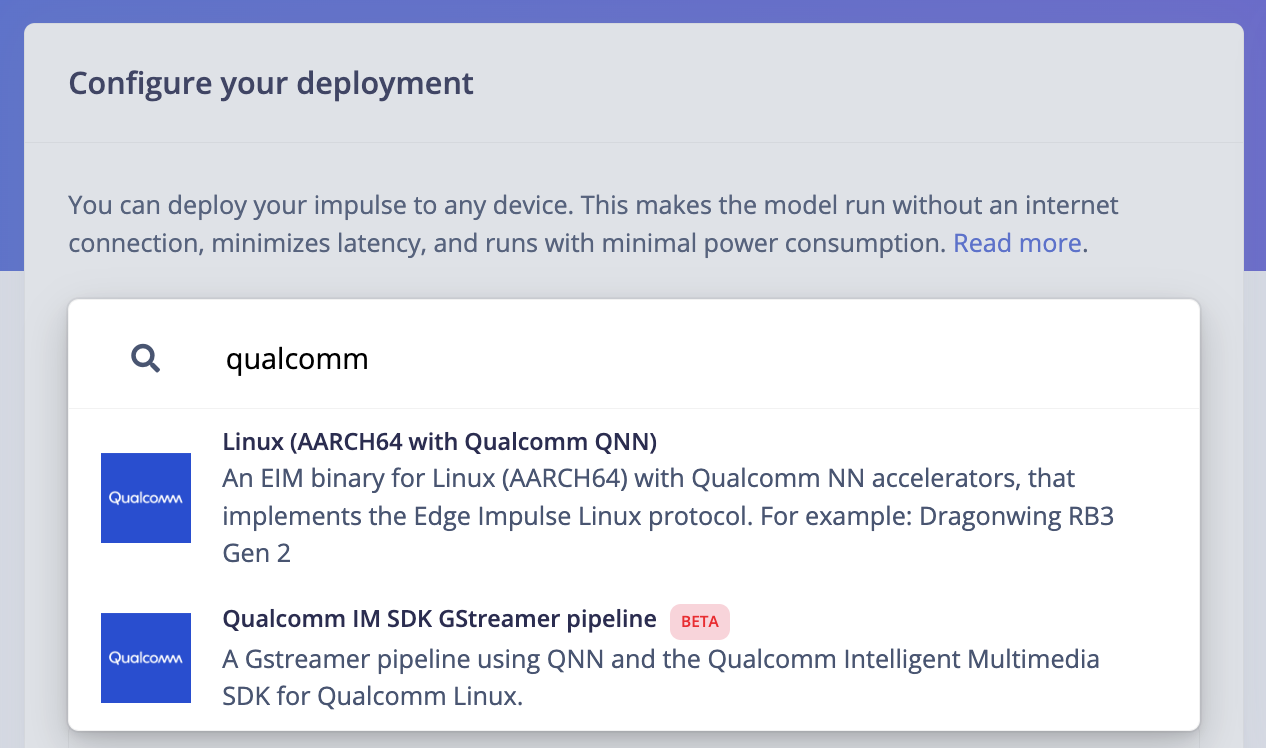 This will download an `.eim` model that you can run on your board with the following command:
```bash theme={"system"}
edge-impulse-linux-runner --model-file downloaded-model.eim
```
### Using the Edge Impulse Linux Inferencing SDKs
Our [Linux SDK](/tools/libraries/sdks/inference/linux) has examples on how to integrate the `.eim` model with your favourite programming language.
You can download either the quantized version and the float32 versions but Qualcomm NN accelerator only supports quantized models. If you select the float32 version, the model will run on CPU.
### Using the IM SDK GStreamer option
When selecting this option, you will obtain a `.zip` folder. We provide instructions in the `README.md` file included in the compressed folder.
See more information on [Qualcomm IM SDK GStreamer pipeline](/hardware/deployments/run-qualcomm-im-sdk-gstreamer).
### Image model?
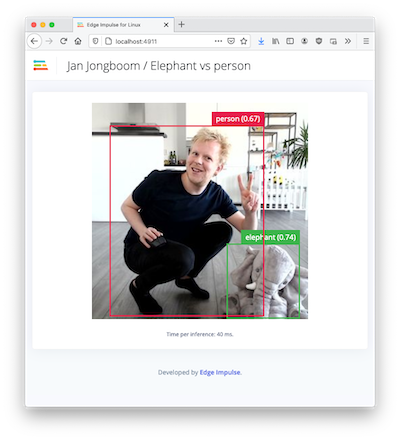
If you have an image model then you can get a peek of what your device sees by being on the same network as your device, and finding the 'Want to see a feed of the camera and live classification in your browser' message in the console. Open the URL in a browser and both the camera feed and the classification are shown:
This will download an `.eim` model that you can run on your board with the following command:
```bash theme={"system"}
edge-impulse-linux-runner --model-file downloaded-model.eim
```
### Using the Edge Impulse Linux Inferencing SDKs
Our [Linux SDK](/tools/libraries/sdks/inference/linux) has examples on how to integrate the `.eim` model with your favourite programming language.
You can download either the quantized version and the float32 versions but Qualcomm NN accelerator only supports quantized models. If you select the float32 version, the model will run on CPU.
### Using the IM SDK GStreamer option
When selecting this option, you will obtain a `.zip` folder. We provide instructions in the `README.md` file included in the compressed folder.
See more information on [Qualcomm IM SDK GStreamer pipeline](/hardware/deployments/run-qualcomm-im-sdk-gstreamer).
### Image model?
If you have an image model then you can get a peek of what your device sees by being on the same network as your device, and finding the 'Want to see a feed of the camera and live classification in your browser' message in the console. Open the URL in a browser and both the camera feed and the classification are shown: