> ## Documentation Index
> Fetch the complete documentation index at: https://docs.edgeimpulse.com/llms.txt
> Use this file to discover all available pages before exploring further.
# Infineon CY8CKIT-062-BLE Pioneer Kit
**CY8CKIT-062-BLE PSoC™ 6-BLE Pioneer Kit and CY8CKIT-028-EPD expansion kit required**
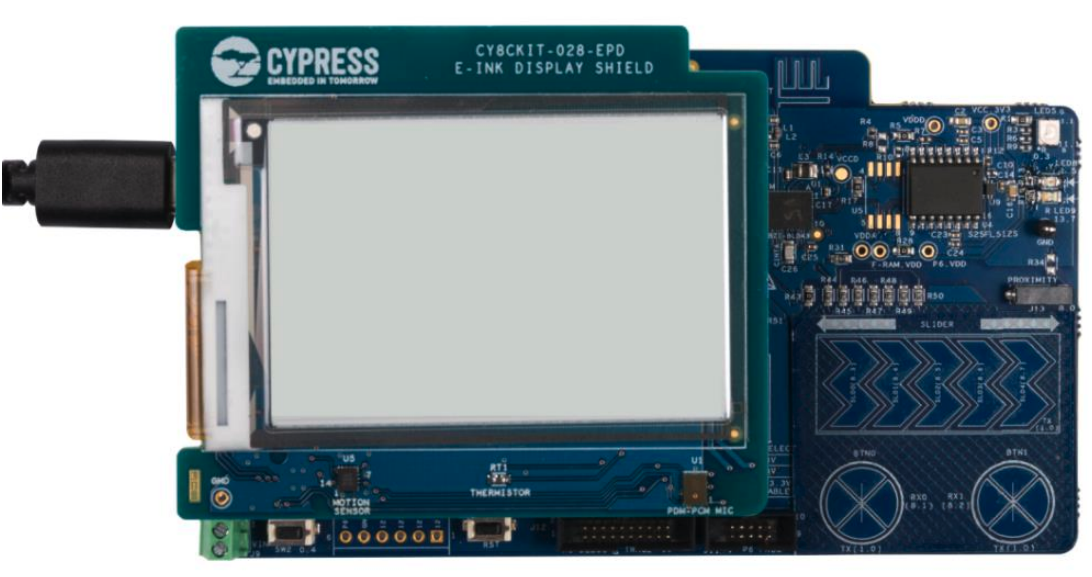
This guide assumes you have the [E-ink Display Shield Board](https://www.infineon.com/cms/en/product/evaluation-boards/cy8ckit-028-epd/) attached to a [PSoC™ 6-BLE Pioneer Kit](https://www.infineon.com/cms/en/product/evaluation-boards/cy8ckit-062-ble/)
The [Infineon CY8CKIT-062-BLE PSoC 6 BLE Pioneer Kit](https://www.infineon.com/cms/en/product/evaluation-boards/cy8ckit-062-ble/) is a hardware platform that enables the evaluation and development of applications using the PSoC™ 63 MCU with AIROC™ Bluetooth® LE. The PSoC 6 BLE Pioneer Kit when paired along with the E-ink display shield board, [CY8CKIT-028-EPD](https://www.infineon.com/cms/en/product/evaluation-boards/cy8ckit-028-epd/), forms a powerful combination with its onboard sensors. The kit come with an onboard thermistor, 6-axis motion sensor, and a digital microphone. The PSoC 6 BLE Pioneer Kit baseboard also comes with 2 buttons, a 5-segment slider, and a proximity sensor based on CAPSENSE™ technology.
The Edge Impulse firmware for this development board is open source and hosted on GitHub: [edgeimpulse/firmware-infineon-cy8ckit-062-ble](https://github.com/edgeimpulse/firmware-infineon-cy8ckit-062-ble).
 ### Installing dependencies
To set this device up with Edge Impulse, you will need to install the following software:
1. [Infineon CyProgrammer](https://softwaretools.infineon.com/tools/com.ifx.tb.tool.cypressprogrammer). A utility program we will use to flash firmware images onto the target.
2. The [Edge Impulse CLI](/tools/clis/edge-impulse-cli/installation) which will enable you to connect your CY8CKIT-062-BLE Pioneer Kit directly to Edge Impulse Studio, so that you can collect raw data and trigger in-system inferences.
**Problems installing the CLI?**
See the [Installation and troubleshooting](/tools/clis/edge-impulse-cli/installation) guide.
#### Updating the firmware
Edge Impulse Studio can collect data directly from your CY8CKIT-062-BLE Pioneer Kit and also help you trigger in-system inferences to debug your model, but in order to allow Edge Impulse Studio to interact with your CY8CKIT-062-BLE Pioneer Kit you first need to flash it with our [base firmware image](https://cdn.edgeimpulse.com/firmware/infineon-cy8ckit-062-ble.zip).
##### 1. Download the base firmware image
[Download the latest Edge Impulse firmware](https://cdn.edgeimpulse.com/firmware/infineon-cy8ckit-062-ble.zip), and unzip the file. Once downloaded, unzip it to obtain the `firmware-infineon-cy8ckit-062-ble.hex` file, which we will be using in the following steps.
##### 2. Connect the CY8CKIT-062-BLEPioneer Kit to your computer
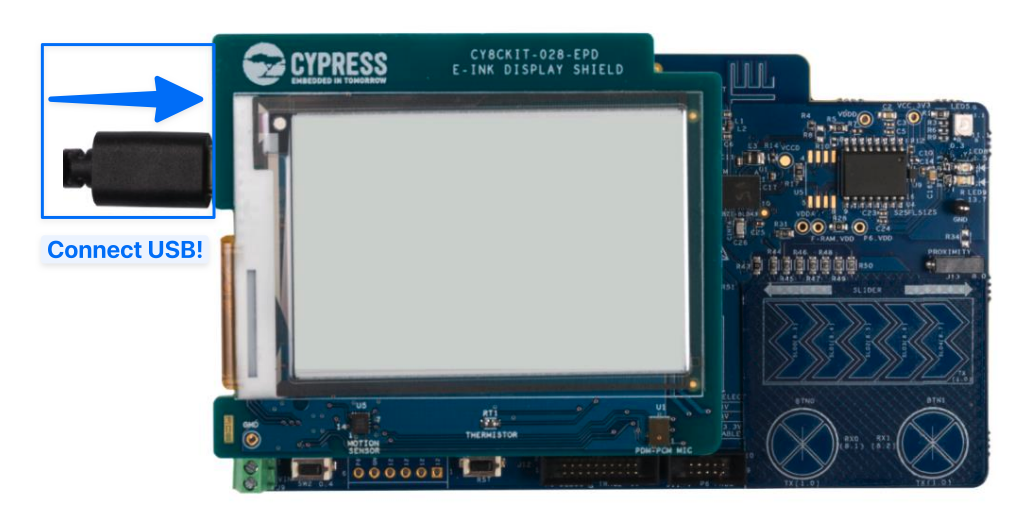
Use a micro-USB cable to connect the CY8CKIT-062-BLE Pioneer Kit to your development computer (where you downloaded and installed [Infineon CyProgrammer](https://softwaretools.infineon.com/tools/com.ifx.tb.tool.cypressprogrammer)).
### Installing dependencies
To set this device up with Edge Impulse, you will need to install the following software:
1. [Infineon CyProgrammer](https://softwaretools.infineon.com/tools/com.ifx.tb.tool.cypressprogrammer). A utility program we will use to flash firmware images onto the target.
2. The [Edge Impulse CLI](/tools/clis/edge-impulse-cli/installation) which will enable you to connect your CY8CKIT-062-BLE Pioneer Kit directly to Edge Impulse Studio, so that you can collect raw data and trigger in-system inferences.
**Problems installing the CLI?**
See the [Installation and troubleshooting](/tools/clis/edge-impulse-cli/installation) guide.
#### Updating the firmware
Edge Impulse Studio can collect data directly from your CY8CKIT-062-BLE Pioneer Kit and also help you trigger in-system inferences to debug your model, but in order to allow Edge Impulse Studio to interact with your CY8CKIT-062-BLE Pioneer Kit you first need to flash it with our [base firmware image](https://cdn.edgeimpulse.com/firmware/infineon-cy8ckit-062-ble.zip).
##### 1. Download the base firmware image
[Download the latest Edge Impulse firmware](https://cdn.edgeimpulse.com/firmware/infineon-cy8ckit-062-ble.zip), and unzip the file. Once downloaded, unzip it to obtain the `firmware-infineon-cy8ckit-062-ble.hex` file, which we will be using in the following steps.
##### 2. Connect the CY8CKIT-062-BLEPioneer Kit to your computer
Use a micro-USB cable to connect the CY8CKIT-062-BLE Pioneer Kit to your development computer (where you downloaded and installed [Infineon CyProgrammer](https://softwaretools.infineon.com/tools/com.ifx.tb.tool.cypressprogrammer)).
 ##### 3. Load the base firmware image with Infineon CyProgrammer
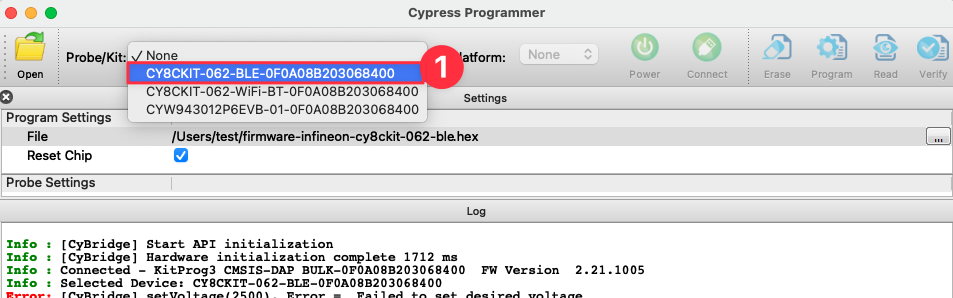
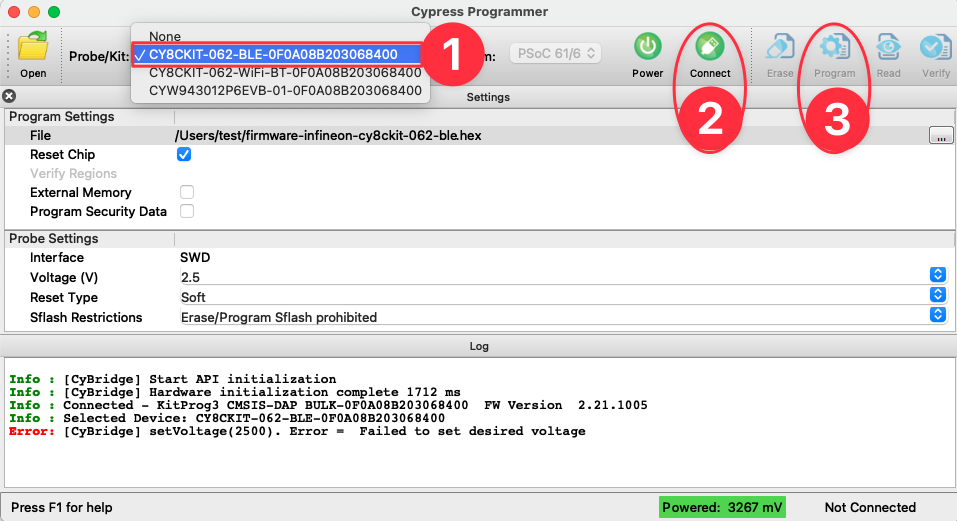
You can use [Infineon CyProgrammer](https://softwaretools.infineon.com/tools/com.ifx.tb.tool.cypressprogrammer) to flash your CY8CKIT-062-BLE Pioneer Kit with our [base firmware image](https://cdn.edgeimpulse.com/firmware/infineon-cy8ckit-062-ble.zip). To do this, first select your board from the dropdown list on the top left corner. Make sure to select the item that starts with `CY8CKIT-062-BLE-XXXX`:
##### 3. Load the base firmware image with Infineon CyProgrammer
You can use [Infineon CyProgrammer](https://softwaretools.infineon.com/tools/com.ifx.tb.tool.cypressprogrammer) to flash your CY8CKIT-062-BLE Pioneer Kit with our [base firmware image](https://cdn.edgeimpulse.com/firmware/infineon-cy8ckit-062-ble.zip). To do this, first select your board from the dropdown list on the top left corner. Make sure to select the item that starts with `CY8CKIT-062-BLE-XXXX`:
 Then select the base firmware image file you downloaded in the first step above (i.e., the file named `firmware-infineon-cy8ckit-062-ble.hex`). You can now press the `Connect` button to connect to the board, and finally the `Program` button to load the base firmware image onto the CY8CKIT-062S2 Pioneer Kit.
 **Keep** [**Infineon CyProgrammer**](https://softwaretools.infineon.com/tools/com.ifx.tb.tool.cypressprogrammer) **Handy**
[Infineon CyProgrammer](https://softwaretools.infineon.com/tools/com.ifx.tb.tool.cypressprogrammer) will be needed to upload any other project built on Edge Impulse, but the base firmware image only has to be loaded once.
### Connecting to Edge Impulse
With all the software in place, it's time to connect the CY8CKIT-062S2 Pioneer Kit to Edge Impulse.
#### 1. Connect the development board to your computer
Use a micro-USB cable to connect the development board to your computer.
#### 2. Setting keys
From a command prompt or terminal, run:
```
edge-impulse-daemon
```
This will start a wizard which will ask you to log in, and choose an Edge Impulse project. If you want to switch projects run the command with `--clean`.
Alternatively, recent versions of Google Chrome and Microsoft Edge can collect data directly from your development board, without the need for the Edge Impulse CLI. See [this blog post](https://edgeimpulse.com/blog/collect-sensor-data-straight-from-your-web-browser) for more information.
#### 3. Verifying that the device is connected
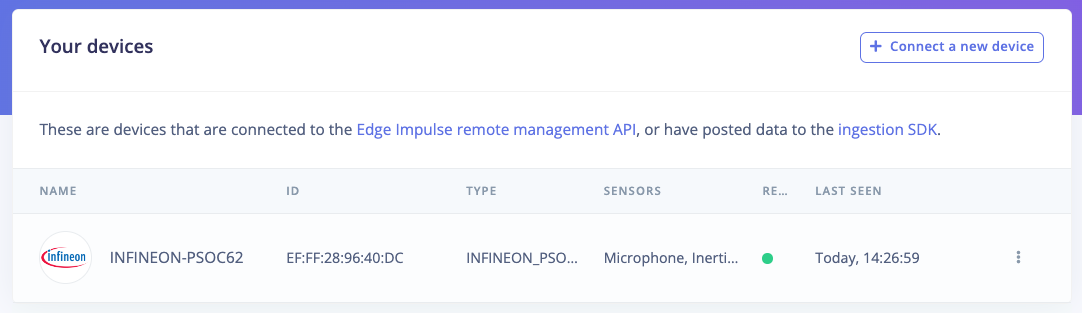
That's all! Your device is now connected to Edge Impulse. To verify this, go to [your Edge Impulse project](https://studio.edgeimpulse.com/studio/profile/projects), and click **Devices** on the left sidebar. The device will be listed there:
**Keep** [**Infineon CyProgrammer**](https://softwaretools.infineon.com/tools/com.ifx.tb.tool.cypressprogrammer) **Handy**
[Infineon CyProgrammer](https://softwaretools.infineon.com/tools/com.ifx.tb.tool.cypressprogrammer) will be needed to upload any other project built on Edge Impulse, but the base firmware image only has to be loaded once.
### Connecting to Edge Impulse
With all the software in place, it's time to connect the CY8CKIT-062S2 Pioneer Kit to Edge Impulse.
#### 1. Connect the development board to your computer
Use a micro-USB cable to connect the development board to your computer.
#### 2. Setting keys
From a command prompt or terminal, run:
```
edge-impulse-daemon
```
This will start a wizard which will ask you to log in, and choose an Edge Impulse project. If you want to switch projects run the command with `--clean`.
Alternatively, recent versions of Google Chrome and Microsoft Edge can collect data directly from your development board, without the need for the Edge Impulse CLI. See [this blog post](https://edgeimpulse.com/blog/collect-sensor-data-straight-from-your-web-browser) for more information.
#### 3. Verifying that the device is connected
That's all! Your device is now connected to Edge Impulse. To verify this, go to [your Edge Impulse project](https://studio.edgeimpulse.com/studio/profile/projects), and click **Devices** on the left sidebar. The device will be listed there:
 ### Next steps: building a machine learning model
With everything set up you can now build your first machine learning model with these tutorials:
* [Building a continuous motion recognition system](/tutorials/end-to-end/motion-recognition).
* [Recognizing sounds from audio](/tutorials/end-to-end/sound-recognition).
* [Keyword spotting](/tutorials/end-to-end/keyword-spotting).
Looking to connect different sensors? The [Data forwarder](/tools/clis/edge-impulse-cli/data-forwarder) lets you easily send data from any sensor into Edge Impulse.
### Deploying back to device
#### Inferencing with BLE
Firmware that is deployed via the Infineon PSoC 63 BLE Pioneer Kit in the Deployment section of an Edge Impulse project come with BLE connectivity. One may download the Infineon [AIROC BLE App](https://www.infineon.com/cms/en/design-support/tools/utilities/wireless-connectivity/airoc-bluetooth-connect-app-mobile-app/) for your device and connect. Please watch this short video as a demonstration.
### ModusToolBox Examples
Edge Impulse projects may be found in [Infineon's ModusToolBox](https://www.infineon.com/cms/en/design-support/tools/sdk/modustoolbox-software/). These examples allow you to quickly develop applications around machine learning models and the Edge Impulse SDK. If you need to update the model you may [Deploy a C++ library](/studio/projects/deployment#deploy-as-a-customizable-library) from your project and unzip the resulting downloaded folder into your ModusToolBox application.
To create an example project you must first open a new ModusToolBox application from the File menu
### Next steps: building a machine learning model
With everything set up you can now build your first machine learning model with these tutorials:
* [Building a continuous motion recognition system](/tutorials/end-to-end/motion-recognition).
* [Recognizing sounds from audio](/tutorials/end-to-end/sound-recognition).
* [Keyword spotting](/tutorials/end-to-end/keyword-spotting).
Looking to connect different sensors? The [Data forwarder](/tools/clis/edge-impulse-cli/data-forwarder) lets you easily send data from any sensor into Edge Impulse.
### Deploying back to device
#### Inferencing with BLE
Firmware that is deployed via the Infineon PSoC 63 BLE Pioneer Kit in the Deployment section of an Edge Impulse project come with BLE connectivity. One may download the Infineon [AIROC BLE App](https://www.infineon.com/cms/en/design-support/tools/utilities/wireless-connectivity/airoc-bluetooth-connect-app-mobile-app/) for your device and connect. Please watch this short video as a demonstration.
### ModusToolBox Examples
Edge Impulse projects may be found in [Infineon's ModusToolBox](https://www.infineon.com/cms/en/design-support/tools/sdk/modustoolbox-software/). These examples allow you to quickly develop applications around machine learning models and the Edge Impulse SDK. If you need to update the model you may [Deploy a C++ library](/studio/projects/deployment#deploy-as-a-customizable-library) from your project and unzip the resulting downloaded folder into your ModusToolBox application.
To create an example project you must first open a new ModusToolBox application from the File menu
 Then, you must choose which board support package (BSP) you wish to run your application on. Boards that are officially supported will have Edge Impulse examples.
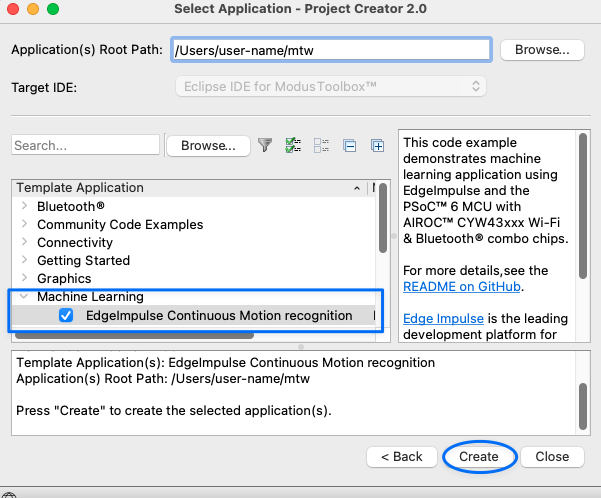
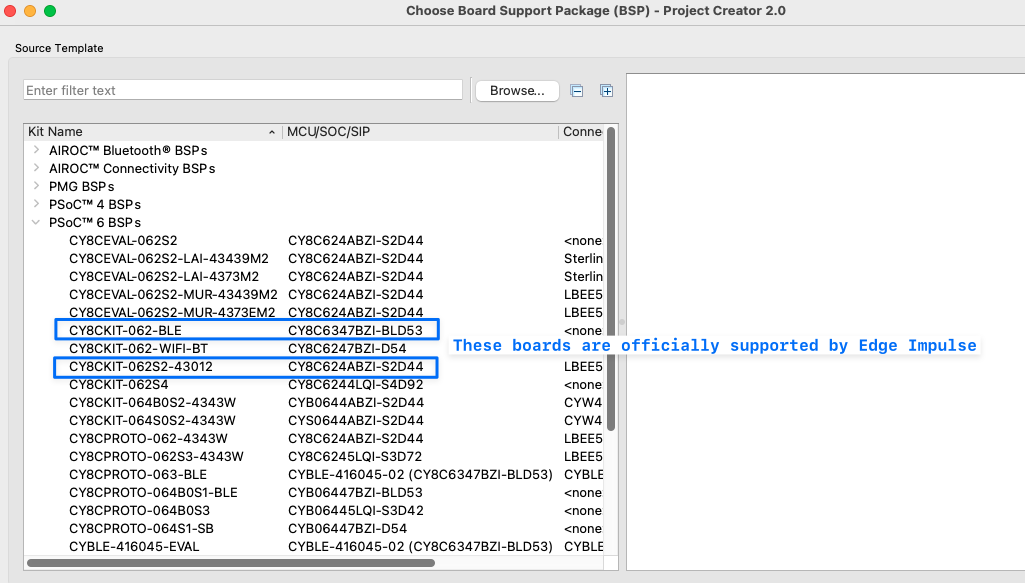 Lastly, in the Project Creator window, you may select any Edge Impulse listings available for that product and click on Create. Please refer to the ModusToolBox help and tutorials for more information on running applications on your device.