> ## Documentation Index
> Fetch the complete documentation index at: https://docs.edgeimpulse.com/llms.txt
> Use this file to discover all available pages before exploring further.
# Himax WE-I Plus
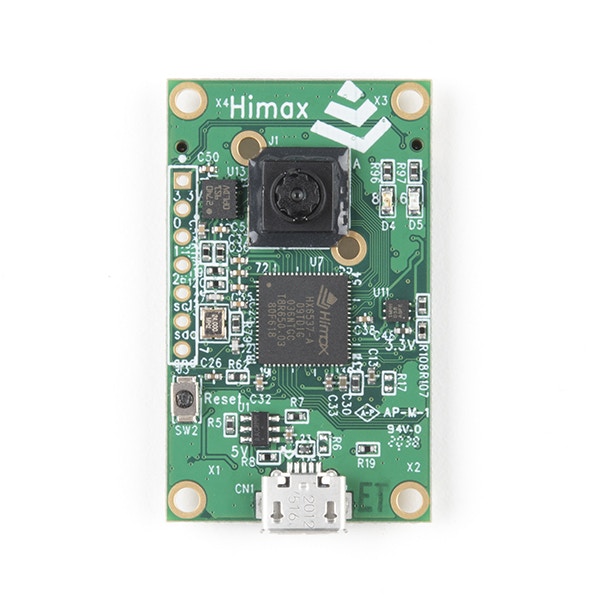
The Himax WE-I Plus is a tiny development board with a camera, a microphone, an accelerometer and a very fast DSP - and it's fully supported by Edge Impulse. You'll be able to sample raw data, build models, and deploy trained machine learning models directly from the studio. It's available on [Sparkfun](https://sparkfun.com/products/17256).
The Edge Impulse firmware for this development board is open source and hosted on GitHub: [edgeimpulse/firmware-himax-we-i-plus](https://github.com/edgeimpulse/firmware-himax-we-i-plus).
 ### Installing dependencies
To set this device up in Edge Impulse, you will need to install the following software:
1. [Edge Impulse CLI](/tools/clis/edge-impulse-cli/installation).
2. On Linux:
* GNU Screen: install for example via `sudo apt install screen`.
**Problems installing the CLI?**
See the [Installation and troubleshooting](/tools/clis/edge-impulse-cli/installation) guide.
### Connecting to Edge Impulse
With all the software in place it's time to connect the development board to Edge Impulse.
#### 1. Connect the development board to your computer
Use a micro-USB cable to connect the development board to your computer.
#### 2. Update the firmware
The development board does not come with the right firmware yet. To update the firmware:
1. [Download the latest Edge Impulse firmware](https://cdn.edgeimpulse.com/firmware/himax-we-i.zip), and unzip the file.
2. Open the flash script for your operating system (`flash_windows.bat`, `flash_mac.command` or `flash_linux.sh`) to flash the firmware.
3. Wait until flashing is complete, and press the RESET button once to launch the new firmware.
#### 3. Setting keys
From a command prompt or terminal, run:
```
edge-impulse-daemon
```
This will start a wizard which will ask you to log in, and choose an Edge Impulse project. If you want to switch projects run the command with `--clean`.
Alternatively, recent versions of Google Chrome and Microsoft Edge can collect data directly from your development board, without the need for the Edge Impulse CLI. See [this blog post](https://edgeimpulse.com/blog/collect-sensor-data-straight-from-your-web-browser) for more information.
#### 4. Verifying that the device is connected
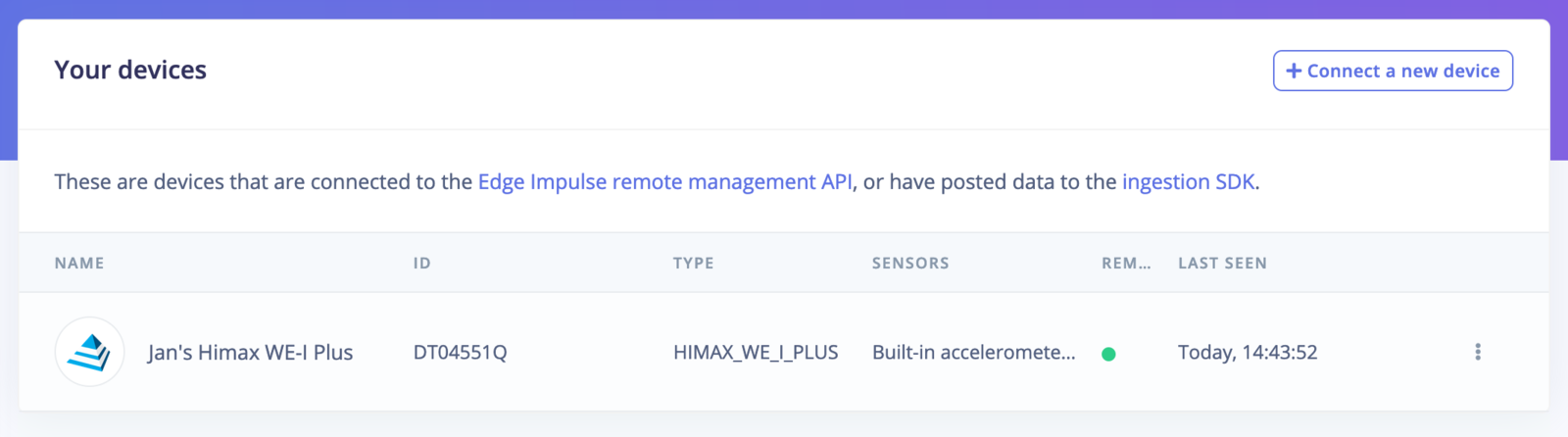
That's all! Your device is now connected to Edge Impulse. To verify this, go to [your Edge Impulse project](https://studio.edgeimpulse.com/studio/profile/projects), and click **Devices**. The device will be listed here.
### Installing dependencies
To set this device up in Edge Impulse, you will need to install the following software:
1. [Edge Impulse CLI](/tools/clis/edge-impulse-cli/installation).
2. On Linux:
* GNU Screen: install for example via `sudo apt install screen`.
**Problems installing the CLI?**
See the [Installation and troubleshooting](/tools/clis/edge-impulse-cli/installation) guide.
### Connecting to Edge Impulse
With all the software in place it's time to connect the development board to Edge Impulse.
#### 1. Connect the development board to your computer
Use a micro-USB cable to connect the development board to your computer.
#### 2. Update the firmware
The development board does not come with the right firmware yet. To update the firmware:
1. [Download the latest Edge Impulse firmware](https://cdn.edgeimpulse.com/firmware/himax-we-i.zip), and unzip the file.
2. Open the flash script for your operating system (`flash_windows.bat`, `flash_mac.command` or `flash_linux.sh`) to flash the firmware.
3. Wait until flashing is complete, and press the RESET button once to launch the new firmware.
#### 3. Setting keys
From a command prompt or terminal, run:
```
edge-impulse-daemon
```
This will start a wizard which will ask you to log in, and choose an Edge Impulse project. If you want to switch projects run the command with `--clean`.
Alternatively, recent versions of Google Chrome and Microsoft Edge can collect data directly from your development board, without the need for the Edge Impulse CLI. See [this blog post](https://edgeimpulse.com/blog/collect-sensor-data-straight-from-your-web-browser) for more information.
#### 4. Verifying that the device is connected
That's all! Your device is now connected to Edge Impulse. To verify this, go to [your Edge Impulse project](https://studio.edgeimpulse.com/studio/profile/projects), and click **Devices**. The device will be listed here.
 ### Next steps: building a machine learning model
With everything set up you can now build your first machine learning model with these tutorials:
* [Keyword spotting](/tutorials/end-to-end/keyword-spotting)
* [Sound recognition](/tutorials/end-to-end/sound-recognition)
* [Image classification](/tutorials/end-to-end/image-classification)
* [object detection](/tutorials/end-to-end/object-detection-bounding-boxes).
* [Object detection with centroids (FOMO)](/tutorials/end-to-end/object-detection-centroids)
Looking to connect different sensors? The [Data forwarder](/tools/clis/edge-impulse-cli/data-forwarder) lets you easily send data from any sensor into Edge Impulse.
### Troubleshooting
#### All licenses are in use by other developers.
If you export to the Himax WE-I Plus you could receive the error: "All licenses are in use by other developers.". Unfortunately we have a limited number of licenses for the MetaWare compiler and these are shared between all Studio users. Try again in a little bit, or export your project as a C++ Library, add it to the [edgeimpulse/firmware-himax-we-i-plus](/hardware/boards/himax-we-i-plus) project and compile locally.
#### COM port not detected
If no device shows up in your OS (ie: COMxx, /dev/tty.usbxx) after connecting the board and your USB cable supports data transfer, you can download the drivers directly from the mirror links below, as their site is sometimes down:
| OS | Driver |
| ----------- | ------------------------------------------------------------------------------------------------- |
| OSX ARM | [Download](/.assets/images/ftdi-drivers/osx-arm-FTDIUSBSerialDextInstaller_1_5_0.dmg) |
| OSX x64 | [Download](/.assets/images/ftdi-drivers/osx-x64-FTDIUSBSerialDextInstaller_1_5_0.dmg) |
| Windows ARM | [Download](/.assets/images/ftdi-drivers/WinArm-CDM-v2.12.36.4-for-ARM64-Signed-Distributable.zip) |
| Windows x64 | [Download](/.assets/images/ftdi-drivers/Winx64-CDM-v2.12.36.4-WHQL-Certified.zip) |
| Windows x86 | [Download](/.assets/images/ftdi-drivers/Winx86-CDM-v2.12.36.4-WHQL-Certified.zip) |
### Next steps: building a machine learning model
With everything set up you can now build your first machine learning model with these tutorials:
* [Keyword spotting](/tutorials/end-to-end/keyword-spotting)
* [Sound recognition](/tutorials/end-to-end/sound-recognition)
* [Image classification](/tutorials/end-to-end/image-classification)
* [object detection](/tutorials/end-to-end/object-detection-bounding-boxes).
* [Object detection with centroids (FOMO)](/tutorials/end-to-end/object-detection-centroids)
Looking to connect different sensors? The [Data forwarder](/tools/clis/edge-impulse-cli/data-forwarder) lets you easily send data from any sensor into Edge Impulse.
### Troubleshooting
#### All licenses are in use by other developers.
If you export to the Himax WE-I Plus you could receive the error: "All licenses are in use by other developers.". Unfortunately we have a limited number of licenses for the MetaWare compiler and these are shared between all Studio users. Try again in a little bit, or export your project as a C++ Library, add it to the [edgeimpulse/firmware-himax-we-i-plus](/hardware/boards/himax-we-i-plus) project and compile locally.
#### COM port not detected
If no device shows up in your OS (ie: COMxx, /dev/tty.usbxx) after connecting the board and your USB cable supports data transfer, you can download the drivers directly from the mirror links below, as their site is sometimes down:
| OS | Driver |
| ----------- | ------------------------------------------------------------------------------------------------- |
| OSX ARM | [Download](/.assets/images/ftdi-drivers/osx-arm-FTDIUSBSerialDextInstaller_1_5_0.dmg) |
| OSX x64 | [Download](/.assets/images/ftdi-drivers/osx-x64-FTDIUSBSerialDextInstaller_1_5_0.dmg) |
| Windows ARM | [Download](/.assets/images/ftdi-drivers/WinArm-CDM-v2.12.36.4-for-ARM64-Signed-Distributable.zip) |
| Windows x64 | [Download](/.assets/images/ftdi-drivers/Winx64-CDM-v2.12.36.4-WHQL-Certified.zip) |
| Windows x86 | [Download](/.assets/images/ftdi-drivers/Winx86-CDM-v2.12.36.4-WHQL-Certified.zip) |