> ## Documentation Index
> Fetch the complete documentation index at: https://docs.edgeimpulse.com/llms.txt
> Use this file to discover all available pages before exploring further.
# Advantech AOM-2721 OSM
The Advantech AOM-2721 is an Open Standard Module (OSM), specifically a Computer-on-Module, that uses the OSM 1.1 form factor. It's designed to be a compact and integrated computing platform, particularly suited for embedded applications and edge AI.
Key features of the AOM-2721:
* Powered by Qualcomm QCS6490/QCS5430 SoC
* 1 Kryo Gold plus up to 2.7 GHz
* 3 Kryo Gold at 2.4 GHz
* 4 Kryo Sliver at 1.9 GHz
* Andreo VPU 633 4K30 encode/Decode
* Andreo GPU 643, OpenGL ES3.2/OpenCL 2.0
* 12 TOPs NPU for AI applications
* Onboard LPDDR5 8GB, 8533MT/s
* 1x MIPI-DSI x4, 1x DP and 1x eDP1.4 for Displays
* 1x USB3.2 Gen1, 1x USB2.0, 2x PCIe Gen3.0 x1, 1x PCIe Gen3.0 x2, 2x I2S, 4x
* 4wire UART, 3x SPI,39x GPIO, 4x I2C, 2x MIPI-CSI x4
 ## Setting Up Your Advantech AOM-2721 OSM
### 0. Preface
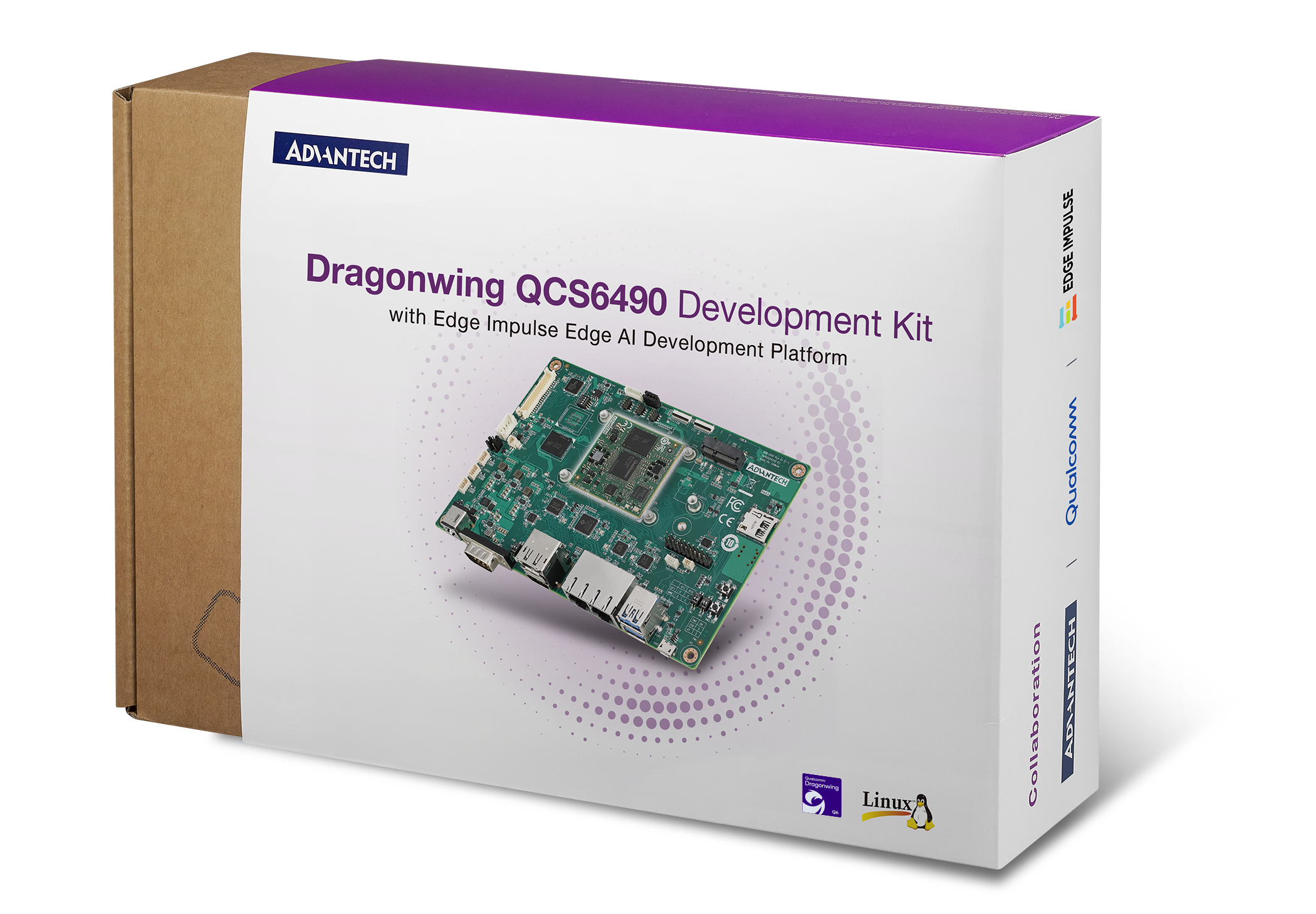
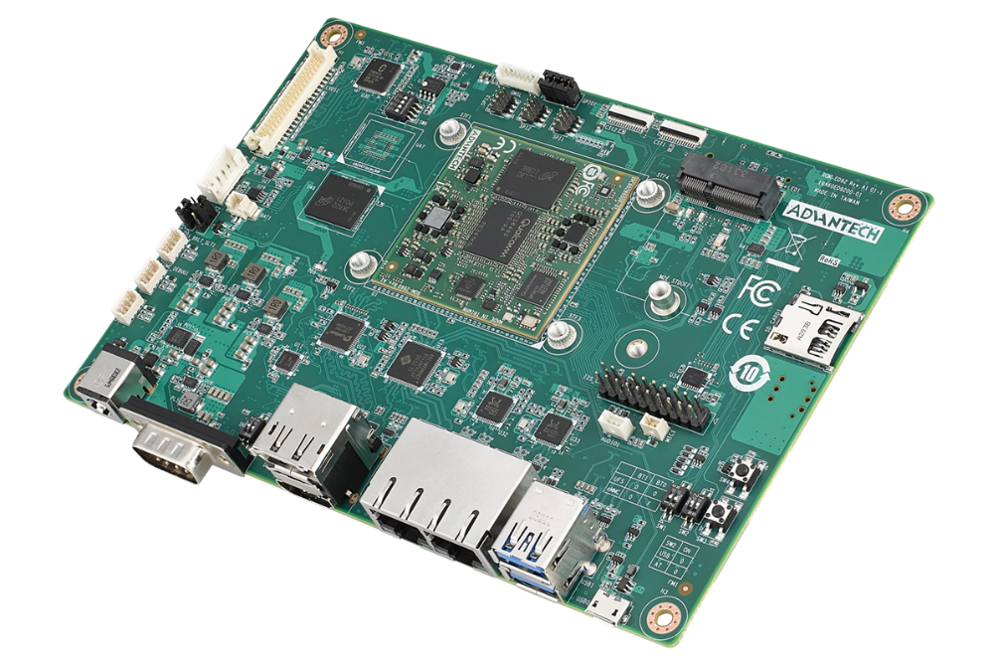
The AOM-2721 OSM is typically the primary module in a complete system. In this documentation, we will use the Advantech AOM-2721 Dev Kit as the sample AOM-2721 OSM.
## Setting Up Your Advantech AOM-2721 OSM
### 0. Preface
The AOM-2721 OSM is typically the primary module in a complete system. In this documentation, we will use the Advantech AOM-2721 Dev Kit as the sample AOM-2721 OSM.
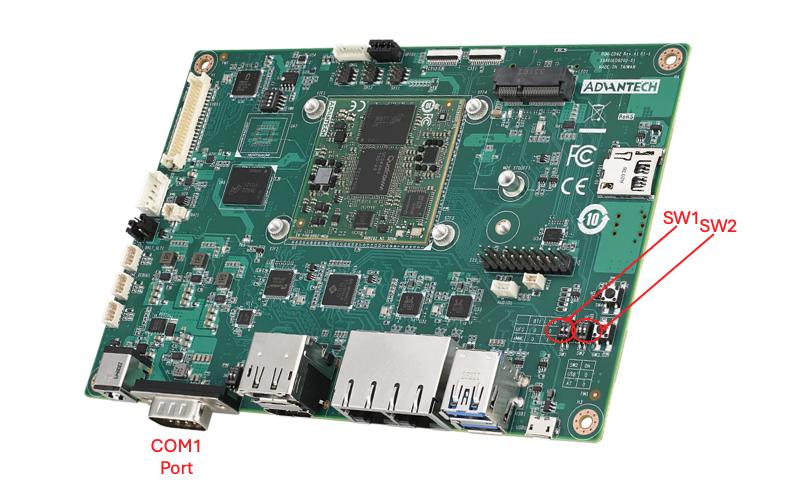
 For example, this picture below showing micro switches on the AOM-2721 Dev Kit that are used during the flashing process should be common to any AOM-2721 OSM compatible device:
 In the following setup instructions, the AOM-2721 Dev Kit will be the actual device shown in the pictures. Other devices, based upon the AOM-2721 OSM may look slightly different.
### 1. (OPTIONAL) Flashing your AOM-2721 OSM
Your actual device containing the AOM-2721 OSM may already ship with a running yocto-based image flashed into it. If so, you can optionally proceed to step 3). If you want to flash your device, you will need to follow the instructions located [here](https://ess-wiki.advantech.com.tw/view/AOM-2721_Yocto_user_guide#.E5.BF.AB.E9.80.9F.E5.85.A5.E9.96.80.C2.A0.28Quick_Start.29)
Official Yocto images created by Advantech for the AOM-2721 OSM can be found [here](https://ess-wiki.advantech.com.tw/view/AIM-Linux/BSP/Qualcomm/Linux_Yocto_OS_Release_note/LE1.3/Internal)
Once flashed, proceed to step 3) below.
### 2. (OPTIONAL) Building your own Yocto image for your AOM-2721 OSM
Some may want to actually fully build their own Yocto image for their AOM-2721 OSM. In this case, please refer to the following instructions located [here](https://ess-wiki.advantech.com.tw/view/AIM-Linux/BSP/Qualcomm/RISC_QCS_Yocto_LE1.3_AOM2721#7._Build_YOCTO_Image_by_build.C2.A0script) to setup a Yocto build host and build a compatible Yocto image for your AOM-2721.
### 2. Starting up your AOM-2721 OSM and connecting to the Internet
1. Install the [Edge Impulse CLI](/tools/clis/edge-impulse-cli) on your computer.
2. Connect power to the back of the AOM-2721 OSM.
3. Connect the COM1 serial port to your host computer's USB port via a SERIAL-TO-USB converter:
4. Open a serial connection between your host computer and the board.
You can do this directly using the Edge Impulse CLI by running the following command from your command prompt or terminal:
```bash theme={"system"}
edge-impulse-run-impulse --raw
```
5. Press the power button and the device should begin to boot up.
6. After 30-60 seconds you should see a login prompt in your serial terminal. Log in with:
* Username: `root`
* Password `oelinux123`
7. Next, set up a network connection, either:
1. Connect an Ethernet cable.
2. Or, if you want to connect over WiFi:
* Qualcomm Linux \<1.3: [edit the wpa\_supplicant.conf](https://docs.qualcomm.com/bundle/publicresource/topics/80-70014-253/ubuntu_host.html#sub\$set_up_wifi).
* Qualcomm Linux 1.3: [use nmcli](https://docs.qualcomm.com/bundle/publicresource/topics/80-70017-253/set_up_the_device.html#panel-0-vwj1bnr1tab\$using-wi-fi).
After connecting the board to the internet, reboot it. This will refresh the system clock (through the NTP), resolving an issue with invalid certificates when installing the Edge Impulse CLI.
8. If you want to continue setting up over ssh (so you can unplug the device from your computer), find your IP address via:
```bash theme={"system"}
$ ifconfig | grep "inet addr:" | grep -v "127.0.0.1"
inet addr:192.168.1.38 Bcast:192.168.1.255 Mask:255.255.255.0
```
Then log in via ssh (password: `oelinux123`):
```bash theme={"system"}
$ ssh root@192.168.1.38
```
### 3. Installing the Edge Impulse Linux CLI
On the AOM-2721 OSM, install the Edge Impulse CLI and other dependencies via:
```bash theme={"system"}
$ wget https://cdn.edgeimpulse.com/firmware/linux/setup-edge-impulse-qc-linux.sh
$ sh setup-edge-impulse-qc-linux.sh
```
### 4. Connecting to Edge Impulse
With all dependencies set up, run:
```bash theme={"system"}
$ edge-impulse-linux
```
This will start a wizard which asks you to log in and choose an Edge Impulse project. If you want to switch projects, or use a different camera (e.g. a USB camera) run the command with the `--clean` argument.
### 5. Verifying that your device is connected
That's all! Your device is now connected to Edge Impulse. To verify this, go to [your Edge Impulse project](https://studio.edgeimpulse.com/studio/profile/projects), and click **Devices**. The device will be listed there.
## Next steps: building a machine learning model
With everything set up you can now build your first machine learning model with these tutorials:
* [Responding to your voice](/tutorials/end-to-end/keyword-spotting)
* [Recognize sounds from audio](/tutorials/end-to-end/sound-recognition)
* [Adding sight to your sensors](/tutorials/end-to-end/image-classification)
* [Object detection](/tutorials/end-to-end/object-detection-bounding-boxes)
* [Visual anomaly detection with FOMO-AD](/studio/projects/learning-blocks/blocks/visual-anomaly-detection-fomo-ad)
Looking to connect different sensors? Our [Linux SDK](/tools/libraries/sdks/inference/linux) lets you easily send data from any sensor and any programming language (with examples in Node.js, Python, Go and C++) into Edge Impulse.
## Profiling your models
To profile your models for the Advantech AOM-2721 OSM:
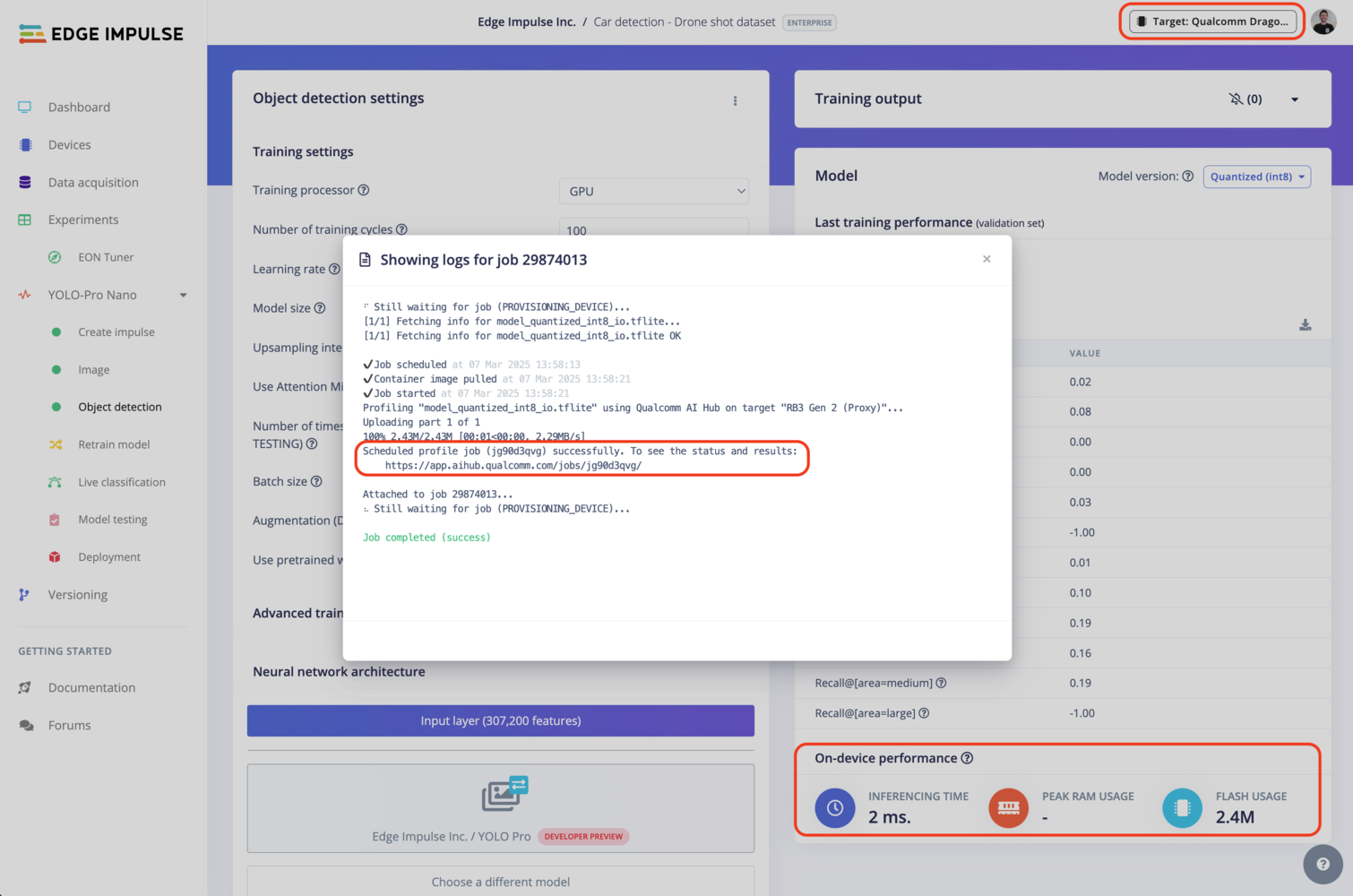
* Make sure to select the Qualcomm Dragonwing™ AOM-2721 OSM as your target device. You can change the target at the top of the page near your user's logo.
* Head to your [Learning block](/studio/projects/learning-blocks) page in Edge Impulse Studio.
* Click on the **Calculate performance** button.
To provide the on-device performance, we use [Qualcomm® AI Hub](https://aihub.qualcomm.com/) in the background (see the image below) which run the compiled model on a physical device to gather metrics such as the mapping of model layers to compute units, inference latency, and peak memory usage. See more on Qualcomm® AI Hub [documentation](https://app.aihub.qualcomm.com/docs/) page.
In the following setup instructions, the AOM-2721 Dev Kit will be the actual device shown in the pictures. Other devices, based upon the AOM-2721 OSM may look slightly different.
### 1. (OPTIONAL) Flashing your AOM-2721 OSM
Your actual device containing the AOM-2721 OSM may already ship with a running yocto-based image flashed into it. If so, you can optionally proceed to step 3). If you want to flash your device, you will need to follow the instructions located [here](https://ess-wiki.advantech.com.tw/view/AOM-2721_Yocto_user_guide#.E5.BF.AB.E9.80.9F.E5.85.A5.E9.96.80.C2.A0.28Quick_Start.29)
Official Yocto images created by Advantech for the AOM-2721 OSM can be found [here](https://ess-wiki.advantech.com.tw/view/AIM-Linux/BSP/Qualcomm/Linux_Yocto_OS_Release_note/LE1.3/Internal)
Once flashed, proceed to step 3) below.
### 2. (OPTIONAL) Building your own Yocto image for your AOM-2721 OSM
Some may want to actually fully build their own Yocto image for their AOM-2721 OSM. In this case, please refer to the following instructions located [here](https://ess-wiki.advantech.com.tw/view/AIM-Linux/BSP/Qualcomm/RISC_QCS_Yocto_LE1.3_AOM2721#7._Build_YOCTO_Image_by_build.C2.A0script) to setup a Yocto build host and build a compatible Yocto image for your AOM-2721.
### 2. Starting up your AOM-2721 OSM and connecting to the Internet
1. Install the [Edge Impulse CLI](/tools/clis/edge-impulse-cli) on your computer.
2. Connect power to the back of the AOM-2721 OSM.
3. Connect the COM1 serial port to your host computer's USB port via a SERIAL-TO-USB converter:
4. Open a serial connection between your host computer and the board.
You can do this directly using the Edge Impulse CLI by running the following command from your command prompt or terminal:
```bash theme={"system"}
edge-impulse-run-impulse --raw
```
5. Press the power button and the device should begin to boot up.
6. After 30-60 seconds you should see a login prompt in your serial terminal. Log in with:
* Username: `root`
* Password `oelinux123`
7. Next, set up a network connection, either:
1. Connect an Ethernet cable.
2. Or, if you want to connect over WiFi:
* Qualcomm Linux \<1.3: [edit the wpa\_supplicant.conf](https://docs.qualcomm.com/bundle/publicresource/topics/80-70014-253/ubuntu_host.html#sub\$set_up_wifi).
* Qualcomm Linux 1.3: [use nmcli](https://docs.qualcomm.com/bundle/publicresource/topics/80-70017-253/set_up_the_device.html#panel-0-vwj1bnr1tab\$using-wi-fi).
After connecting the board to the internet, reboot it. This will refresh the system clock (through the NTP), resolving an issue with invalid certificates when installing the Edge Impulse CLI.
8. If you want to continue setting up over ssh (so you can unplug the device from your computer), find your IP address via:
```bash theme={"system"}
$ ifconfig | grep "inet addr:" | grep -v "127.0.0.1"
inet addr:192.168.1.38 Bcast:192.168.1.255 Mask:255.255.255.0
```
Then log in via ssh (password: `oelinux123`):
```bash theme={"system"}
$ ssh root@192.168.1.38
```
### 3. Installing the Edge Impulse Linux CLI
On the AOM-2721 OSM, install the Edge Impulse CLI and other dependencies via:
```bash theme={"system"}
$ wget https://cdn.edgeimpulse.com/firmware/linux/setup-edge-impulse-qc-linux.sh
$ sh setup-edge-impulse-qc-linux.sh
```
### 4. Connecting to Edge Impulse
With all dependencies set up, run:
```bash theme={"system"}
$ edge-impulse-linux
```
This will start a wizard which asks you to log in and choose an Edge Impulse project. If you want to switch projects, or use a different camera (e.g. a USB camera) run the command with the `--clean` argument.
### 5. Verifying that your device is connected
That's all! Your device is now connected to Edge Impulse. To verify this, go to [your Edge Impulse project](https://studio.edgeimpulse.com/studio/profile/projects), and click **Devices**. The device will be listed there.
## Next steps: building a machine learning model
With everything set up you can now build your first machine learning model with these tutorials:
* [Responding to your voice](/tutorials/end-to-end/keyword-spotting)
* [Recognize sounds from audio](/tutorials/end-to-end/sound-recognition)
* [Adding sight to your sensors](/tutorials/end-to-end/image-classification)
* [Object detection](/tutorials/end-to-end/object-detection-bounding-boxes)
* [Visual anomaly detection with FOMO-AD](/studio/projects/learning-blocks/blocks/visual-anomaly-detection-fomo-ad)
Looking to connect different sensors? Our [Linux SDK](/tools/libraries/sdks/inference/linux) lets you easily send data from any sensor and any programming language (with examples in Node.js, Python, Go and C++) into Edge Impulse.
## Profiling your models
To profile your models for the Advantech AOM-2721 OSM:
* Make sure to select the Qualcomm Dragonwing™ AOM-2721 OSM as your target device. You can change the target at the top of the page near your user's logo.
* Head to your [Learning block](/studio/projects/learning-blocks) page in Edge Impulse Studio.
* Click on the **Calculate performance** button.
To provide the on-device performance, we use [Qualcomm® AI Hub](https://aihub.qualcomm.com/) in the background (see the image below) which run the compiled model on a physical device to gather metrics such as the mapping of model layers to compute units, inference latency, and peak memory usage. See more on Qualcomm® AI Hub [documentation](https://app.aihub.qualcomm.com/docs/) page.
 ## Deploying back to device
### Using the Edge Impulse Linux CLI
To run your impulse locally on the AOM-2721 OSM, open a terminal and run:
```bash theme={"system"}
$ edge-impulse-linux-runner
```
This will automatically compile your model with full hardware acceleration, download the model to your AOM-2721 OSM, and then start classifying (use `--clean` to switch projects).
Alternatively, you can select the **Linux (AARCH64 with Qualcomm QNN)** option in the **Deployment** page.
## Deploying back to device
### Using the Edge Impulse Linux CLI
To run your impulse locally on the AOM-2721 OSM, open a terminal and run:
```bash theme={"system"}
$ edge-impulse-linux-runner
```
This will automatically compile your model with full hardware acceleration, download the model to your AOM-2721 OSM, and then start classifying (use `--clean` to switch projects).
Alternatively, you can select the **Linux (AARCH64 with Qualcomm QNN)** option in the **Deployment** page.
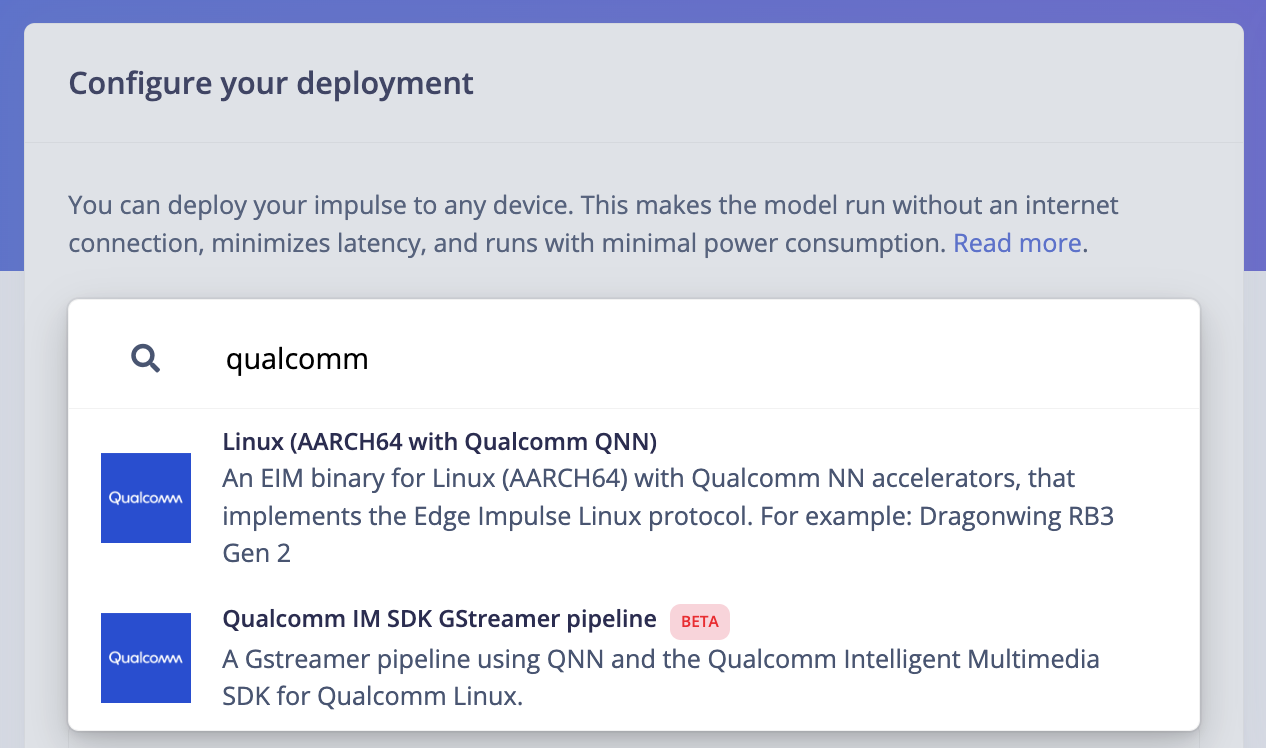 This will download an `.eim` model that you can run on your board with the following command:
```bash theme={"system"}
edge-impulse-linux-runner --model-file downloaded-model.eim
```
### Using the Edge Impulse Linux Inferencing SDKs
Our [Linux SDK](/tools/libraries/sdks/inference/linux) has examples on how to integrate the `.eim` model with your favourite programming language.
You can download either the quantized version and the float32 versions but Qualcomm NN accelerator only supports quantized models. If you select the float32 version, the model will run on CPU.
### Using the IM SDK GStreamer option
When selecting this option, you will obtain a `.zip` folder. We provide instructions in the `README.md` file included in the compressed folder.
See more information on [Qualcomm IM SDK GStreamer pipeline](/hardware/deployments/run-qualcomm-im-sdk-gstreamer).
### Image model?
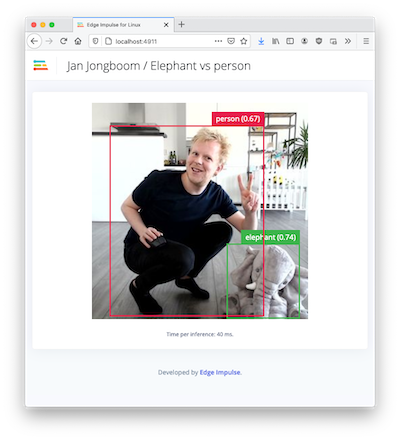
If you have an image model then you can get a peek of what your device sees by being on the same network as your device, and finding the 'Want to see a feed of the camera and live classification in your browser' message in the console. Open the URL in a browser and both the camera feed and the classification are shown:
This will download an `.eim` model that you can run on your board with the following command:
```bash theme={"system"}
edge-impulse-linux-runner --model-file downloaded-model.eim
```
### Using the Edge Impulse Linux Inferencing SDKs
Our [Linux SDK](/tools/libraries/sdks/inference/linux) has examples on how to integrate the `.eim` model with your favourite programming language.
You can download either the quantized version and the float32 versions but Qualcomm NN accelerator only supports quantized models. If you select the float32 version, the model will run on CPU.
### Using the IM SDK GStreamer option
When selecting this option, you will obtain a `.zip` folder. We provide instructions in the `README.md` file included in the compressed folder.
See more information on [Qualcomm IM SDK GStreamer pipeline](/hardware/deployments/run-qualcomm-im-sdk-gstreamer).
### Image model?
If you have an image model then you can get a peek of what your device sees by being on the same network as your device, and finding the 'Want to see a feed of the camera and live classification in your browser' message in the console. Open the URL in a browser and both the camera feed and the classification are shown: